Back in the Page Setup box,
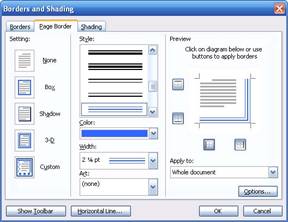
let’s click the Borders button. Here’s what we’ll see:
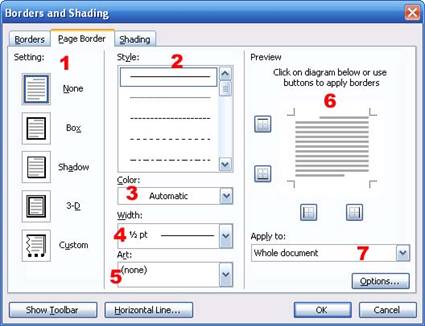
You can use this box to apply a
border around your whole document or around a section of your document.
Borders and shading can become very complicated. Since this is the first
time we’ve talked about them, we’ll try to keep it simple. There are
seven steps to applying a page border:
|
1.
|
Setting |
Choose the type of
border you want: None, Box, Shadow, 3-D, or Custom. Each setting
has a small preview next to it, so it’s easy to pick the type of
border your want. No matter what option you choose, the next
seven steps stay the same. |
|
2.
|
Style |
Pick the style you want.
There are many types of styles ranging from solid, dotted, wavy,
and shaded lines, and different combinations of those styles. |
|
3.
|
Colour |
Pick the colour for your
border. You can choose from a pre-defined palette or make a
custom colour, much like setting a font colour.
|
|
4.
|
Width |
Pick the width for your
border. Pre-defined widths range from ¼ point to 6 point
(measured in font point sizes). You must choose one of these
widths; you cannot enter your own. |
|
5.
|
Art |
Set an artistic border
for your page. Choosing one of these options will remove any
choices made in the Style, Colour, or Width boxes.

|
|
6.
|
Border Choices |
Click any of the four
buttons to apply borders to that part of your document. Click  to apply
a border to the top; to apply
a border to the top;  to apply
it to the bottom; to apply
it to the bottom;  to apply
it to the left, or to apply
it to the left, or  to apply
it to the right. Any or all of these buttons can be pressed to
achieve different effects. The large box of lines in the middle
of these buttons will show you a preview of your choices. to apply
it to the right. Any or all of these buttons can be pressed to
achieve different effects. The large box of lines in the middle
of these buttons will show you a preview of your choices. |
|
7.
|
Apply to |
Apply this border to the
whole document, this section, the first page only of this
section, or all pages but the first of this section. |
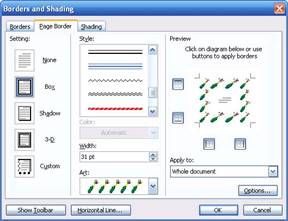
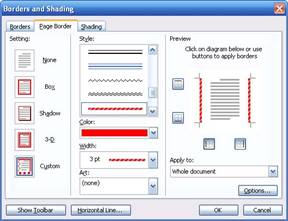
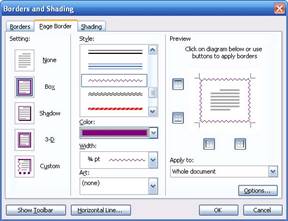
Here are a few sample dialog
boxes:
Once you’ve finished applying
your page border, click OK to save your changes or click Cancel to
discard them. Either action will take you back to the Page Setup box,
where you need to click OK to apply your changes.
|