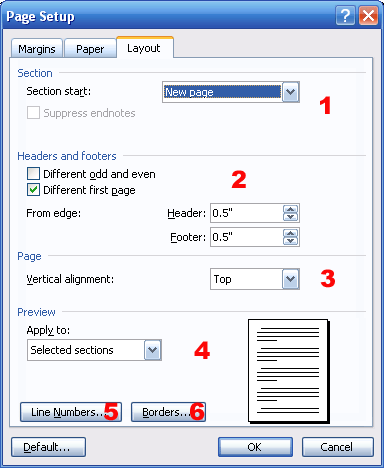
The third tab, Layout, also has four sections. However, it also has two buttons that open up additional dialog boxes which allow you to set borders and shading and line numbers.
Let’s take a look at the first section. This section applies to sections in your document. You can set what happens when a new section starts: if it starts on a new page; is continuous; starts in a new column; starts on an even page; or starts on an odd page. (You can only pick one item from the drop-down menu.) You can also choose to suppress endnotes, which will make them appear at the end of the document instead of at the end of the section.
Section two deals with headers and footers, which we haven’t learned about yet. Put simply, headers and footers are text separate from your document. They are located at the top or bottom of each page in your document.
The first box in this section allows you to set different headers for odd and even pages, while the next box lets you specify a different header or footer for the first page. (The actual text of the header or footer is entered in the document.)
You can also specify how far from the edge of the page headers or footers are using the last two text boxes.
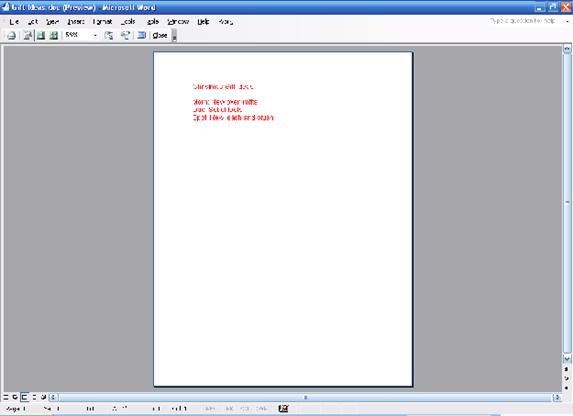
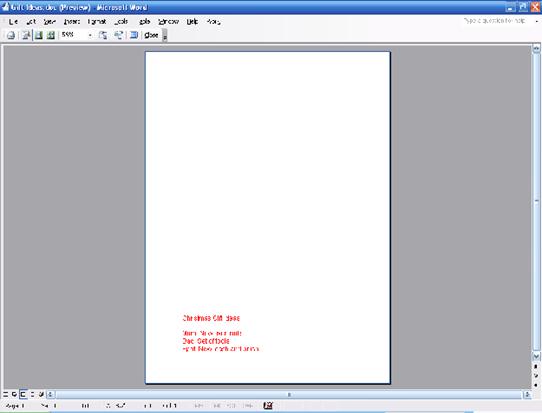
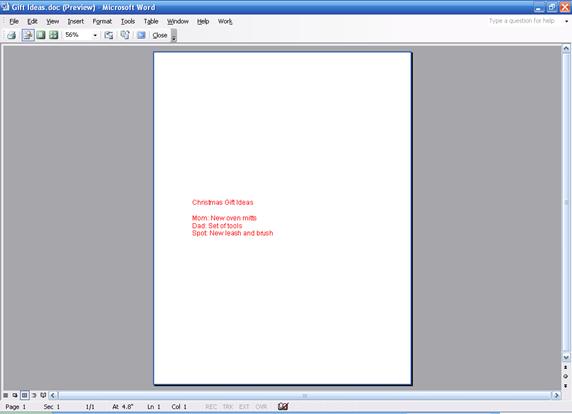
Section three lets you specify where your text goes on the page:
- At the top (the default choice)
- At the bottom
- In the centre
- Justified (so it is spread evenly throughout the page)
Finally, the last section of the Layout tab lets you choose whether to apply these settings to this section, this point forward in the document, or to the whole document. You can also see a preview of your settings using the preview image on the right hand side of the section.
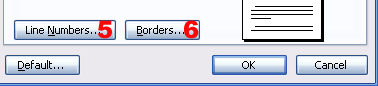
In the bottom left hand corner of the Layout tab, we have two buttons: Line Numbers and Borders.
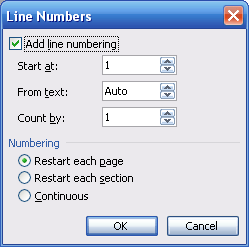
Clicking the Line Numbers button will open this dialog box:
None of these options will be available unless you check Add Line Numbering. The first section of this box contains these options: - Start at: Indicate which line number to start at. - From text: Set the distance the line number should appear from the text. - Count by: Indicate how line numbers should increase.
The second section of the box indicates how numbering should run. You can pick one of these three choices: restart line numbering with each page, restart line numbering with each section, or keep line numbering continuous throughout the document.
Once you’ve set your options, click OK to return to the page setup dialog box. (Of course, you can click Cancel to return to Page Setup without adding line numbers.)
|