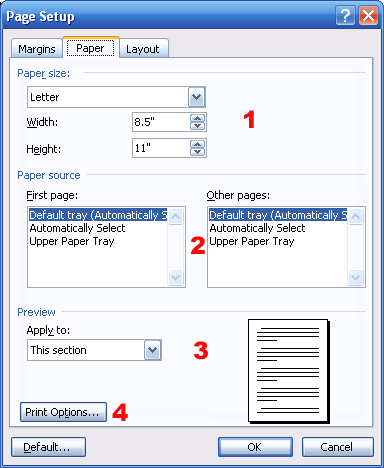
The next tab is Paper. This tab has three sections, plus an extra button (which is labeled with a four in the sample below).
The first section is called Paper Size. You can choose a default paper size from the first menu, which looks like this when it is expanded:
Choosing one of these sizes will fill in the Width and Height boxes below the Paper Size menu. You can also type in the Width and Height boxes to set a custom size.
The second section allows you to choose a paper source. You can see from the sample above that you can set different options for the first page and for the rest of the document. This can come in handy if you’re printing a report that has special paper for the title page. If you’re printing ten copies of it, you don’t want to have to run to the printer and insert special paper every time a new copy starts to print! However, these options will only work if your printer has a multiple-tray configuration. If it’s a standard home printer with one paper feed, Word obviously can’t add trays to it.
Like the Margins tab, section three allows you to apply paper options to this section, this point forward, or the whole document. You can also see a preview of your changes in the picture to the right of this section.
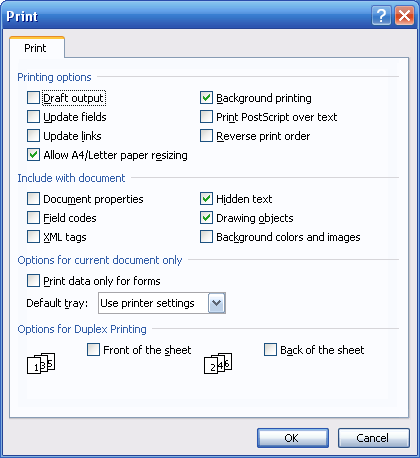
The button labelled with a four in the sample above, called Print Options, will open up the Print Options dialog from the Print dialog, which looks like this:
This box allows you to set special printing options, choose what items to print with the document, set form options, and enable duplex (both-side) printing options. Once you set the options you want, click OK to save them and return to the Page Setup box.
|