Reading layout is new to
Microsoft Office Word 2003. In addition to using the View menu or the
view buttons, you can also click the Read button (
As you might have guessed,
reading layout is designed to make reading a document easier. You can
still type in and edit the document, but many toolbar buttons are
hidden. (The Reviewing toolbar is enabled so you can make comments and
add changes; these tools will be covered in the intermediate section.)
All rulers and the horizontal scroll bar are hidden. You can also toggle
between viewing one page or multiple pages by clicking the page button (
Remember that reading layout does not show your document as it will appear on paper. Pages may start or end differently, and text may appear larger than expected.
Let’s look at our sample document in reading layout:
You can see that this view is much easier to read than any of the other views. You can still move between pages using the Page Up or Page Down keys, or using the vertical scroll bar.
To close Reading Layout and go
back to your previous view, just press Alt + C or click the Close button
(
|


 ) on the
standard toolbar or use the Alt + R shortcut.
) on the
standard toolbar or use the Alt + R shortcut. ) on the
reading layout toolbar.
) on the
reading layout toolbar.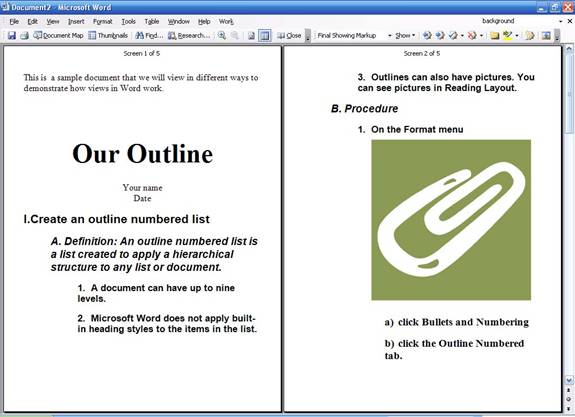
 ) on the
standard toolbar.
) on the
standard toolbar.