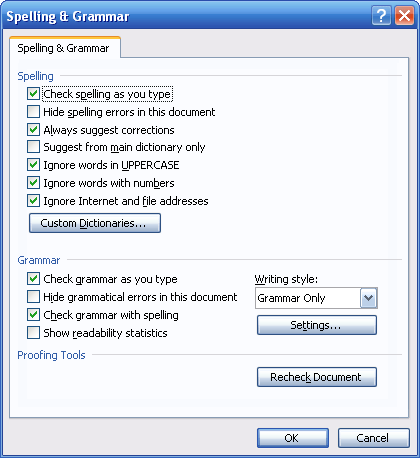
You may have noticed that we had an options button when checking spelling and grammar. We can use this to customize how Word checks our spelling and grammar. When you click the Options button, you will see the window pictured below. Let’s look at each of these options. The first set of options applies to spelling. Each checkbox is self-explanatory. (Remember that you can check it to enable that option or uncheck it to disable that option.)
Next are the grammar options. The first three are self-explanatory. The last, Show readability statistics, will show you statistics about your document when you’ve completed a spelling and grammar check. (We’ll talk about those statistics in a moment.) You can also use the Writing Style drop-down menu on the right to tell Word what grammar elements to check: Grammar Only, or Grammar and Style.
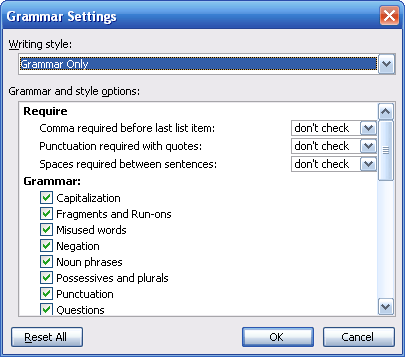
You can also click the Settings button below that menu to see even more grammar options:
At the top, you can choose which writing style you are modifying, and then modify each option using the bottom portion of the window. (We aren’t going to discuss each option as they are self-explanatory.) Once you’ve made changes, you can use the buttons at the bottom to Reset All items to their default, Cancel your changes, or click OK to apply your changes.
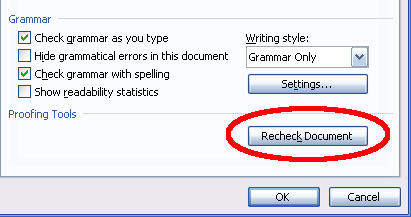
Once we’re back in the main Spelling and Grammar Check Options window, you can click the Recheck Document button to perform a spelling and grammar check with your new settings right away. Or, you can click OK to save your changes or click Cancel to discard them.
|