What if you want to make your own template? Say that each department in your company is creating their own brochure, but you want them to use the same format so there is some consistency. You can open the brochure template, make changes, and then save the file as a Word template.
Here’s how to customize existing templates to create your own. First, open the template you want to modify. Next, make your changes. (Remember that you’re not customizing this completely; you’re only adding the information that will not change no matter who uses the document. For example, if you were customizing a template for everyone in your company to use, you would add information like how to contact the company.)
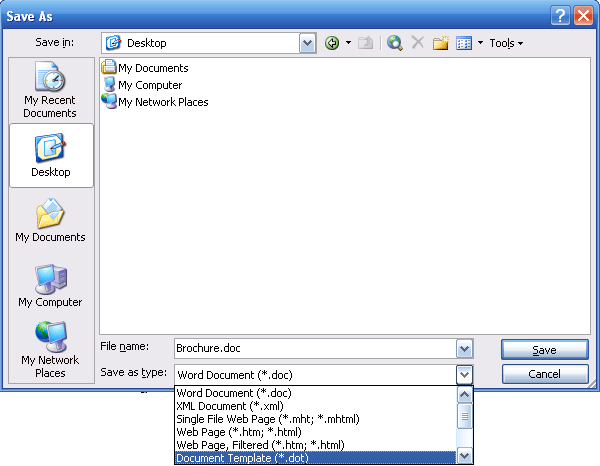
Then, click the File menu and click Save As. Type a name for your file. Then, click the Save as Type drop-down window and pick .dot, like this:
Once you change the file type, Word will automatically change the file location to its templates store. (You can change the location to somewhere else if you want.) Once your options are set, click Save.
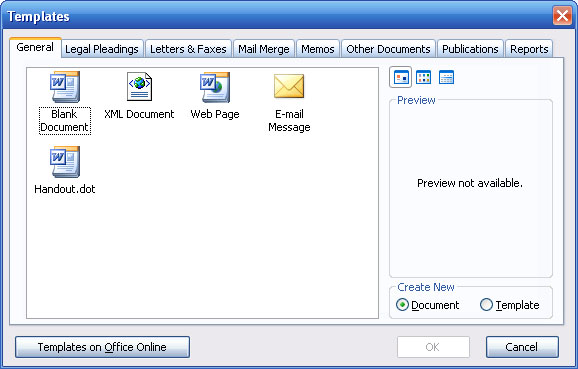
You can then open this template file the same way we opened Word files, using the Open command. You can then open this template file the same way we opened Word files, using the Open command. If you left the location as the default, the template will appear in the Templates window.
|