Before we talk about editing or using a template, let’s talk about adding templates to your collection. The Office Web site, Microsoft Office Online, has hundreds (if not thousands!) of templates you can download for free.
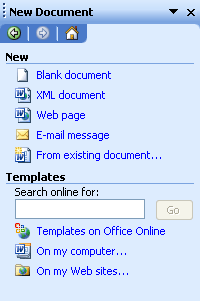
One way you can access those templates is by clicking the Office Online link in either the Template dialog box or right from the New Document task pane:
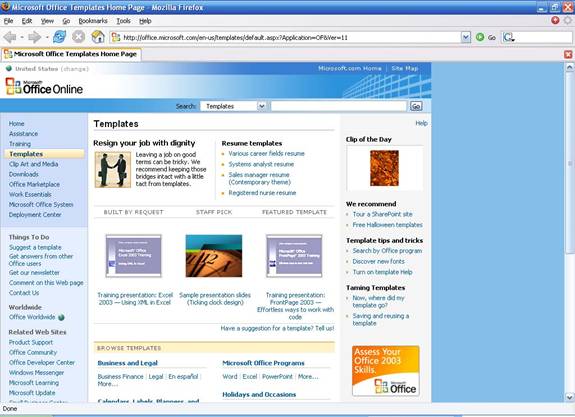
Clicking either of these links will open the Microsoft Office Online Web site in your default Internet browser, like this:
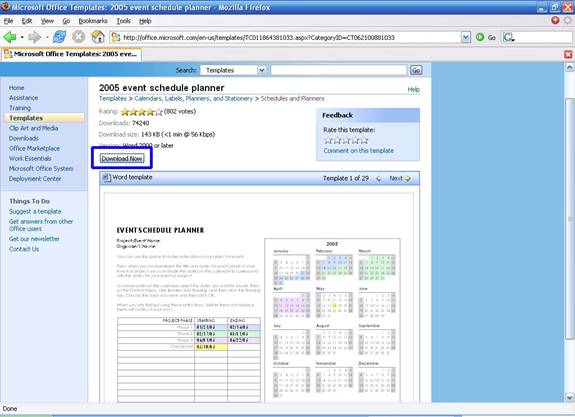
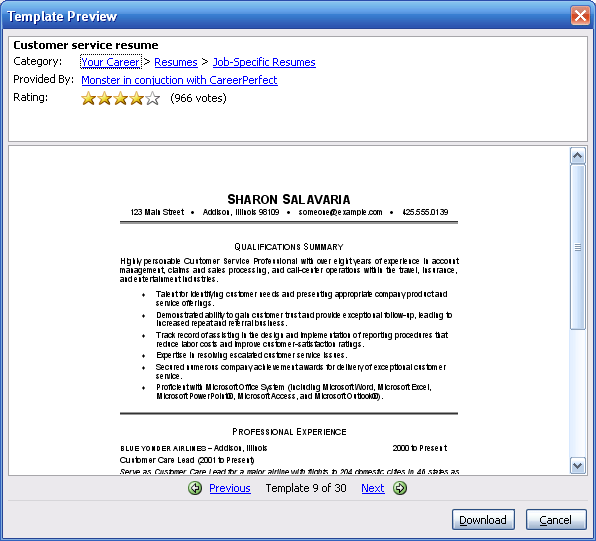
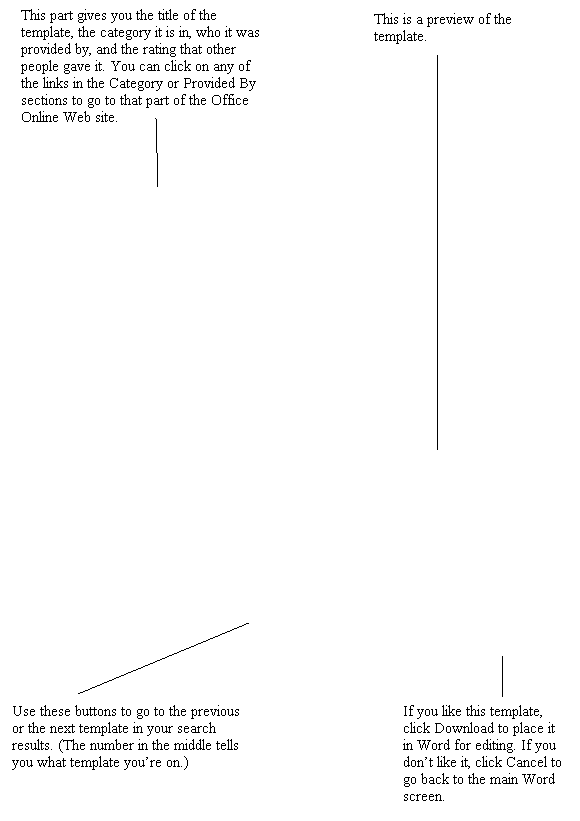
Once you have found a template and clicked on it, you will see a preview of it:
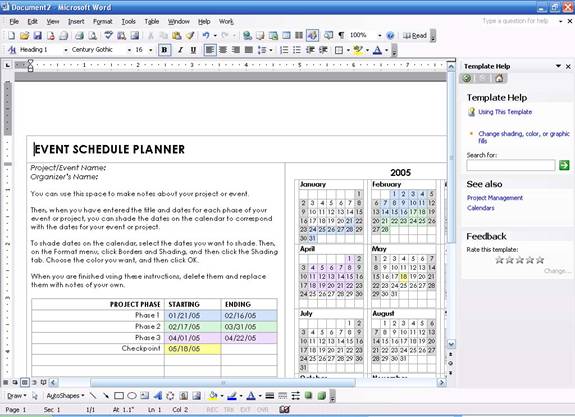
Once you click the download button (circled in blue in the sample above), the template will open in Word, along with a special template help task pane:
From there, it’s just like using any other template. (We’ll get into specifics of how to use templates in a moment.)
Another way to download templates is to use the new document task pane to search for them. Just type in the search dialog box, click Go, and your results will be displayed in the task pane, like this:
Once you click on a link (the title of a template) in the search results window, that template will appear in a new window, like this:
|