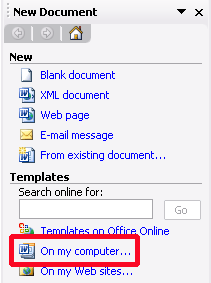
There are two ways to open a pre-defined template in Word. The first way is to click on the Start menu, click on All Programs (or Programs) and click New Office Document. The second way is from within Word, click the File menu and click New. From the New Document task pane on the right, click on my computer… in the templates section (see the picture to the right for an example).
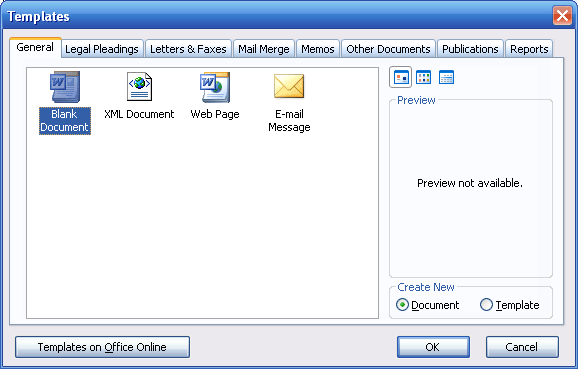
With either action, this window will open:
(If you use the Start menu to open this box, you will see more tabs and templates as it shows templates for all the Office programs you have installed.)
Once you bring up this window, you can choose a tab. Clicking a tab will show templates of that type in the main white window on the left. Then, you can choose a template by clicking on it to select it. When you select a template, you will see a preview of it on the right hand side of the window:
You can also use the buttons at the top of the preview window (circled in blue in the sample above) to change how templates are listed. The three options are large icons (which is the default), list, and details.
Here is a list of all the templates installed with Word by default:
So, once you have one of these templates selected, click OK. The template will open in Word so you can edit it.
|
||||||||||||||||||||||||||||||||||||