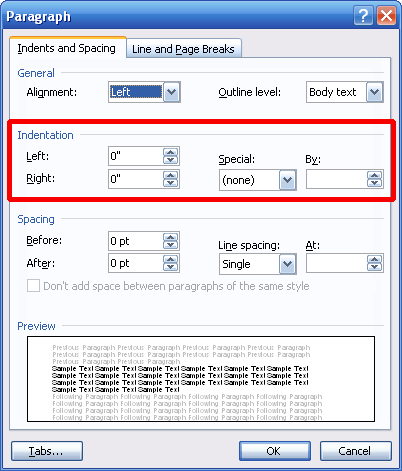
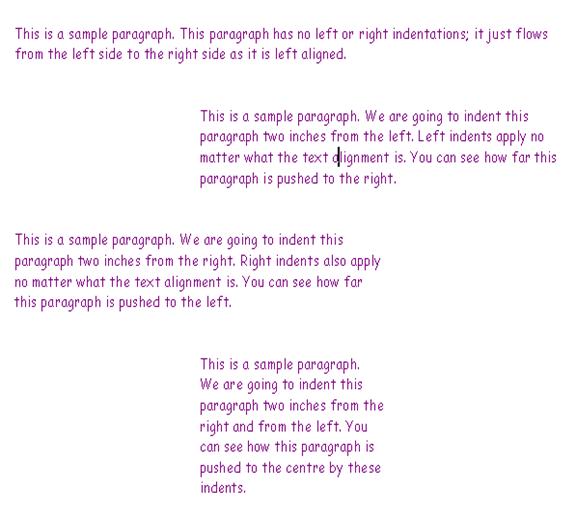
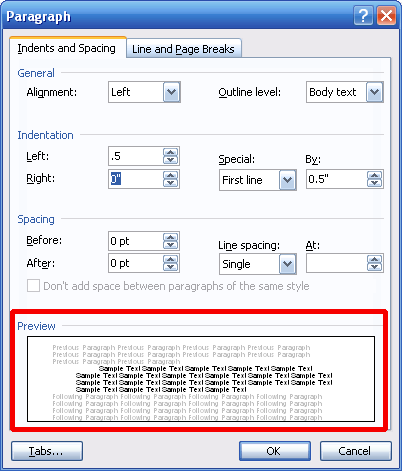
The next set of options in the paragraph dialog box deals with indentation. An indent is how far each line of the paragraph is set in from the margin. You can use the text boxes in the left hand part of the indentation section to type in a number for a left or right indent.
Let’s look at some samples of left and right indents before we look at special indents.
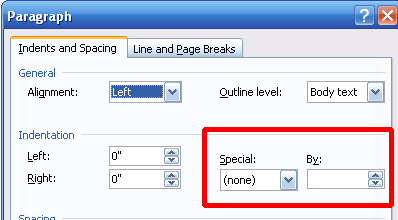
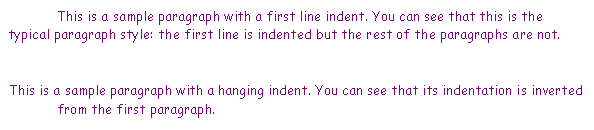
Let’s go back to the Paragraph dialog box. On the right hand side of the indentation section, we have options for special indents. You can choose one of two items from the Special drop-down box: First Line or Hanging. A First Line indent only indents the first line of the paragraph rather than the whole thing. A Hanging indent does the opposite: it doesn’t indent the first line of the paragraph, but does indent the rest of the lines. Once you’ve selected your special indent, type how big you want it to be in the “By” text box. Then, click OK to save your changes.
Let’s look at some samples of both kinds of indents.
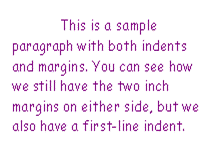
Just like other types of formatting, you can combine paragraphs and indents. Here’s a sample:
Don’t forget that you can preview your indents by looking at the bottom portion of the Paragraph screen:
You can apply indents the same way we applied other formatting and alignment: set the formatting you want and then type your text, or type your text and then set the formatting you want.
|