|
The last set of
options in the Paragraph dialog box is Spacing.
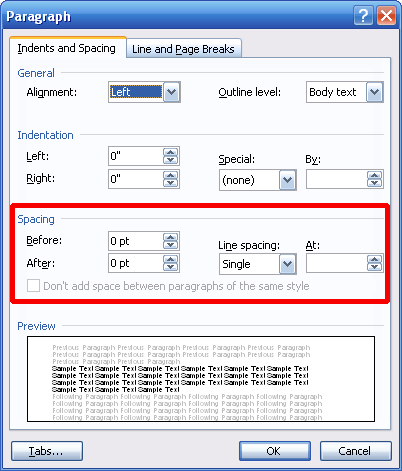
Using the options
on the left hand side of this section, you can set the spacing before or
after a paragraph. (Spacing is set in font point sizes.) Let’s look at
some examples:

The set of options
on the right hand side controls spacing between the lines of the
paragraph.
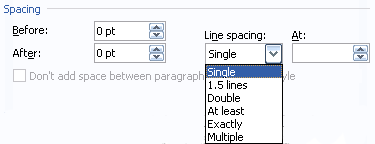
You can pick the
line spacing type from the drop down menu. For some types, you need to
enter a value in the At box, so let’s look at each type.
|
Single |
No spaces between lines. |
|
1.5 lines |
One and a half times the
amount of space used in single spacing. |
|
Double |
A blank line is placed
between each line of text. |
|
At least |
Sets line spacing to at
least a certain value. (Enter the point size value in the At
box; for example, 12 points.) This can be useful if you have
different font sizes in a paragraph, and you want the sizing to
appear uniform. |
|
Exactly |
Sets line spacing to an
exact value. You must enter the point size value in the At box
(for example, 16 points). |
|
Multiple |
Set the spacing between
lines to a multiple of the spacing used in single spacing. Type
the number of lines in the At box. For example, if you typed 4
in the At box, four blank lines would appear in between each
line of your paragraph. (You must type a number between 0 and
132 in the At box for this feature.) |
Let’s look at some
samples.
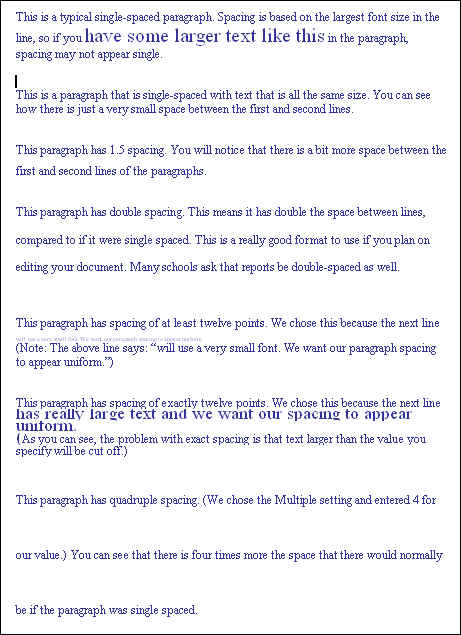
Remember that you
can preview your choice in the bottom portion of the Paragraph dialog
box. Once you’ve made your choices, click OK!
You can apply
spacing options the same way we applied other paragraph options, by
applying them before or after you type your text.
|


