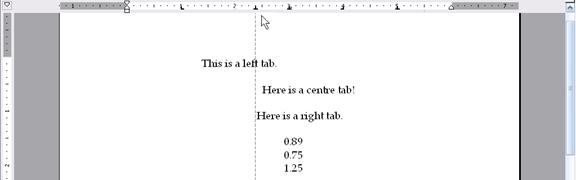
If you prefer using the ruler, you can move a tab just by dragging it to a different location, like this:
The dotted line will appear when you move a tab; it can help you align it in the proper spot.
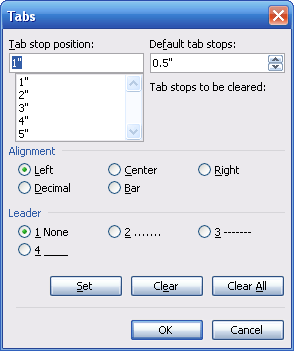
Once you have some tabs set up, your tabs box will have all that information:
You can select any tab from the tab stop position list, and modify its position, alignment, or leader. You can also select the tab and click Clear to remove it completely. Or, you can click Clear All to remove all of your set tabs. (This will not remove default tab stops.)
That’s all there is to modifying tabs!
|