|
1. |
Open
Microsoft Office Word 2003.
(If you already have Word open, use Ctrl + N to open a blank
document.) |
|
|
|
|
2. |
Click the
View
menu and click
Print Layout.
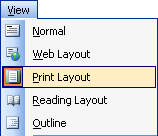
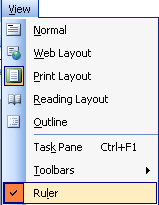
Click the
View
menu again and see if
Rulers
is checked. If it is, click off the menu to return to the
editing window. If it is not, click it to check it.
|
|
|
|
|
3. |
Click the
tab selector button
to the left of the horizontal ruler until you have centre tab
selected.
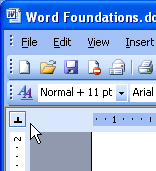
Click the
3 inch
mark on the horizontal ruler to set this tab. |
|
|
|
|
4. |
Click the
Format
menu and click
Tabs.
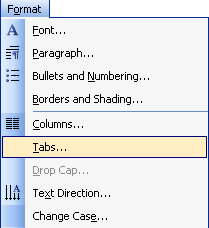
In the Tab Stop
position, type
1.5.
For Alignment,
click Right.
For
Leader,
select any line type.
Click
Set
and then click
OK. |
|
|
|
|
5. |
In your editing
window, press Tab once and type:
This should use the right tab I set at one and a half inches. |
|
|
|
|
6. |
Press Enter, then
press Tab twice and type:
This should use the centre tab I set at three inches. |
|
|
|
|
7. |
Select your first
sentence. Press
Ctrl + E
to centre your text and see how it changes. |
|
|
|
|
8. |
Select your second
sentence. Click the
Justify
icon ( ) on the
standard toolbar to justify your text. ) on the
standard toolbar to justify your text. |
|
|
|
|
9. |
Click the
Format
menu and click
Tabs.
Click
Clear All.
Click
OK. |
|
|
|
|
10. |
Place your
cursor over the right margin indicator in the ruler. (Remember,
the margin indicator looks like a small grey line. Your cursor
will change to a double-headed arrow when your mouse is over
it.) |
|
|
|
|
11. |
Drag your margin
indicator to 5 inches. |
|
|
|
|
12. |
Close
Microsoft Office Word
2003. Do not save your document. |


