|
In the
previous lesson, we talked about how to apply bold, italics, bold
italics, and underline from the font menu. Let’s go over the basics of
using bold, italics, and underline.
|
Bolding |
Bolding text
makes text darker. You can bold text by selecting it and
pressing Ctrl + B or by clicking the bold button on the
formatting toolbar.  |
|
Underlining |
Underlining text
puts a line under the text. You can underline text by selecting
it and pressing Ctrl + U or by clicking the underline button on
the formatting toolbar. 
|
|
Italicizing |
Italicizing text
slants text slightly to the right. You can italicize text by
selecting it and pressing Ctrl + I or by clicking the italics
button on the formatting toolbar. 
|
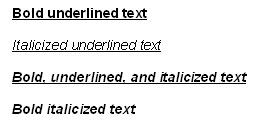
Remember that you
can combine basic elements to produce effects like these:
 |


