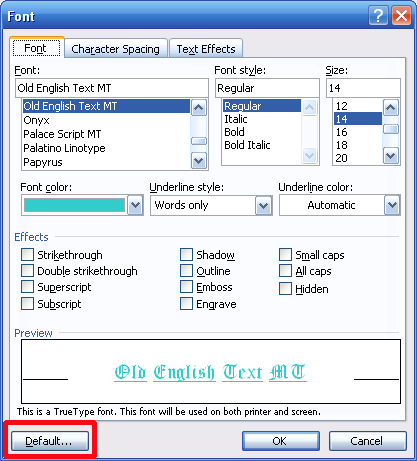
If you find that you’re changing your font to the same settings every time you open Word, it may be useful to set your font as Word’s default. First, click the Format menu and click Font. Then, set all tabs (Font, Character Spacing, and Animation) to your liking. You can use as many or as few options as you want. Once you’ve got all your options configured, click the Default button in the lower left hand corner. (You can see it circled in red in the sample on the right.)
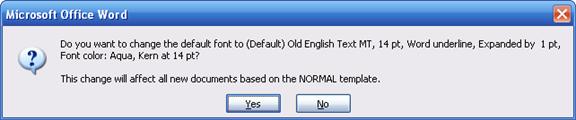
When you click Default, you will get a warning that this will affect all documents that use the current template. This dialog will also summarize the changes you have made. Here’s an example of such a warning box:
If you want to continue, click Yes. If you’ve changed your mind, click No.
If you click Yes and change your mind later on, just click the Format menu and click the Fonts button. Then, make your changes and click Default again.
|