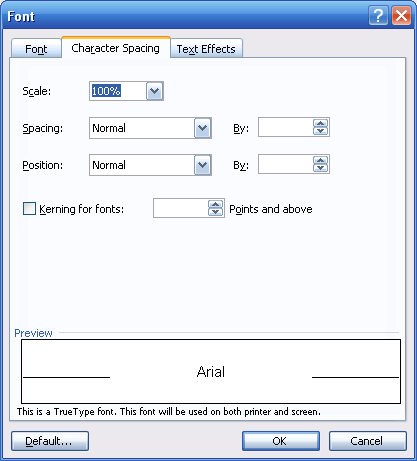
Let’s take a look at the Character Spacing tab of the font dialog box.
The first option in this window is scale. You can use a regular size font, but select a percentage so the font is scaled down.
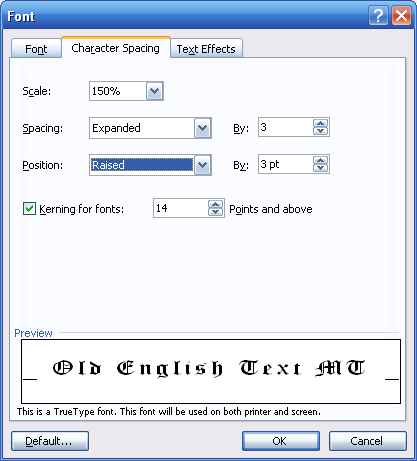
The next option is spacing. You can set spacing to normal, condensed, or expanded, and then choose a point (the same as font point sizes). You can also modify position options to normal, raised, or lowered, and specify a point size for this position.
The last check box enables kerning, which adjusts the spacing between letters so that it looks consistent. If you enable kerning, you can also specify what sizes you want Word to kern (from a certain point on).
Any options you set will be reflected in the preview pane, like this:
You can use these options when you have specific needs to scale your font, or change its spacing or position.
|