The font option you will probably use the most often is changing the font type itself (for example, from Arial to Broadway) or the size. You can use the drop-down menus in the formatting toolbar to do this.
First, let’s look
at changing our font type. The drop-down menu on the Formatting toolbar
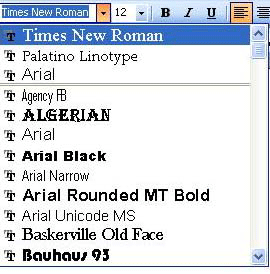
is the easiest way to do that. It looks like this:.
If you know the name of the font you want to use, just type it in the white box. (You will get a prompt if the font you’ve typed doesn’t exist.) If you’d like to see a list of fonts, click the drop-down arrow and the menu will expand like the sample below. At the top of this list are the most recently used fonts. Then, fonts are listed in alphabetical order. The name of each font is typed in that font so you can see what it looks like. You can also use the scroll bar to the right of the menu to scroll through the list of available fonts. Just click the font you want to start using it!
You can change your
font size in much the same way. The font button on the formatting
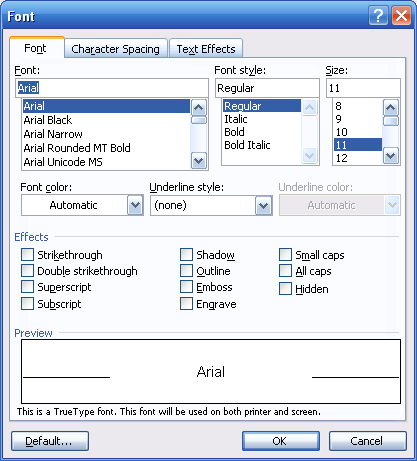
toolbar looks like this: You can also change font type and size by clicking the Format menu and clicking Fonts. You can see what the Fonts dialog box looks like here:
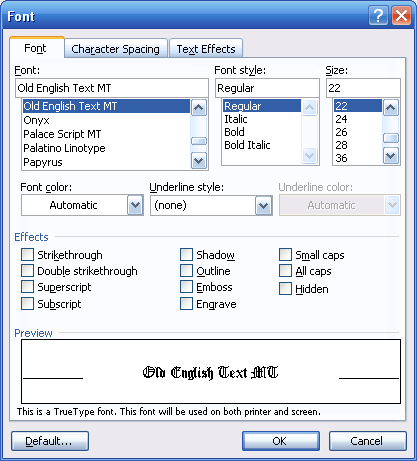
Let’s focus on the sections at the top for right now. At the top left, you can choose from a font list. (You can also type in the box above the list to jump to a point in the list.) At the top right, you can choose the size of the font. You can also type a number in the box above the list to jump to that number. Then, at the bottom of the box, you can see a preview of the selected font type and size. Let’s look at an example:
In this sample, you can see the font choices at the top and the preview of those choices at the bottom. These changes will not be applied to your text until you click OK, so feel free to play around with font types and sizes as much as you want. (If you don’t want to make any changes at all, you can click Cancel to discard your changes.)
|


 . (Fonts
are measured by point size, which is the vertical height of the font
when printed. A point is 1/72 of an inch.) To change your font size, you
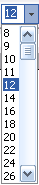
can type any point size from 1 to 1638. Or, you can click the drop-down
arrow to pick common point sizes ranging from 8 to 72. (You can see a
sample on the right; the numbers are all the same size and do not
reflect the font size shown.) Just click the number you want to change
your font size!
. (Fonts
are measured by point size, which is the vertical height of the font
when printed. A point is 1/72 of an inch.) To change your font size, you
can type any point size from 1 to 1638. Or, you can click the drop-down
arrow to pick common point sizes ranging from 8 to 72. (You can see a
sample on the right; the numbers are all the same size and do not
reflect the font size shown.) Just click the number you want to change
your font size!