|
If you click on the
Help menu and click Microsoft Office Word Help, you’ll see a task pane
pop up on the right hand side of your screen. (You can also open this
task pane by pressing the F1 key on your keyboard or clicking the help
icon  on the
standard toolbar.) on the
standard toolbar.)
Let’s take a look
at that task pane. As you’re reading the steps, you can refer to the
sample on the right or refer to your own task pane.
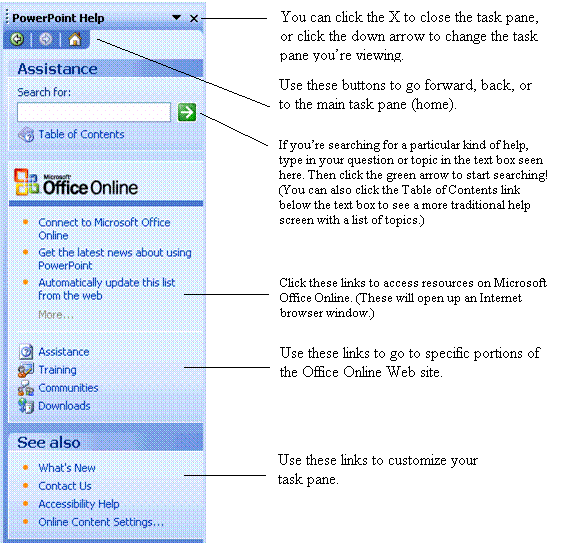
If you choose to
type in a question, topic, or other query in the text box and click the
green Go Arrow  , your
results will then appear in the task pane, like the sample below. , your
results will then appear in the task pane, like the sample below.
Your help results
will all appear as links. You can click on any of these links and the
topic will appear in a separate window. The type of window that appears
depends on what kind of content you click.
With Microsoft
Office Word 2003, you can access several types of content (as long as
you have not turned off content from Office Online). These include:
|
Marketplace
Tools |
Items you
can purchase from Microsoft or other companies to provide extra
functions not found in Word. Clicking on this type of help will
open the link in your Internet browser. |
|
Downloads |
Add-ins
made by Microsoft (and normally available for free) that can add
tools to Word. |
|
Templates |
Pre-made
documents to help you get started on a project. These are
usually available as free downloads from Microsoft. Clicking on
this type of help will open the link in Internet Explorer. |
|
Articles |
A help item
stored on the Microsoft Web site. Unlike regular help items,
they are updated from time to time. These may include text,
audio demonstrations, video demonstrations, or a combination of
media. Clicking on this type of help will open the link in
Internet Explorer.
|
|
Training |
A
mini-course that usually focuses on one particular task.
Clicking on this type of help will open the link in your
Internet browser as the training course is located on the
Microsoft Web site.
|
Remember that all
types of results act the same no matter where you launch help from.
Regular help topics
will probably make up the bulk of your search results. These also open
in their own window, but they open right on top of Word, like this:
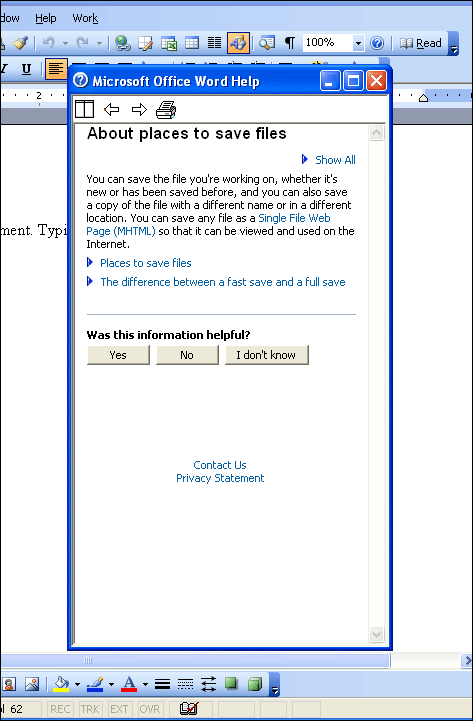
The great thing is
that the Help window will appear as its own entry in the taskbar, so it
can be minimized separate from Word. This lets you tuck it away until
you need it again. You can also resize it to make it fit around your
document.
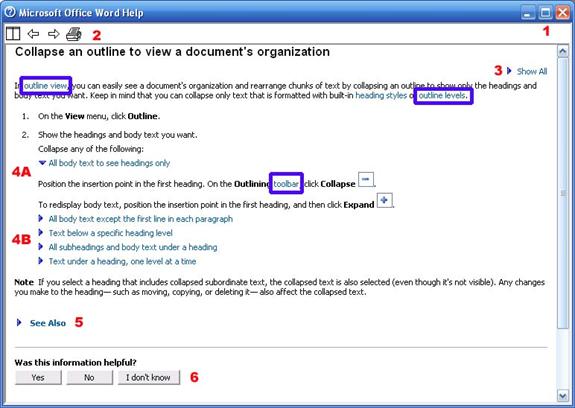
Let’s take a closer
look at that help window.
|
1 |
Use these buttons to
minimize, maximize, or close the Help window. |
|
2 |
Use the first button to
make your help window appear as a pane on the left hand side of
the Word screen. Click it again to return it to a square window.
Or, you can use the arrows to move to the previous or next help
result. Last but not least, click the Print icon to print out
this help result. |
|
3 |
Some words have
definitions; they are shown as light blue text in the help
window. (Some samples are circled in blue.) You can click on
these words for a definition to appear in brackets after the
word. Or, you can click Show All to show all the definitions in
the help result. (Not all help results will contain
definitions.) |
|
4A |
You can click phrases
that have a right-facing arrow to expand them. (Not all help
results will have these kinds of phrases.) |
|
4B |
These phrases can be
clicked to be expanded. |
|
5 |
Click the See Also link
to see links to other topics that might be helpful. (Not all
help results will have this link.)
|
|
6 |
Click these buttons to
send feedback to Microsoft about this help result. |
You can see that
there are many types of resources within a help result; it’s a good idea
to get familiar with them as they can help you learn a lot about Word.
|


