|
Once you open
Microsoft Word using either of the methods listed above, you’ll see the
following screen:
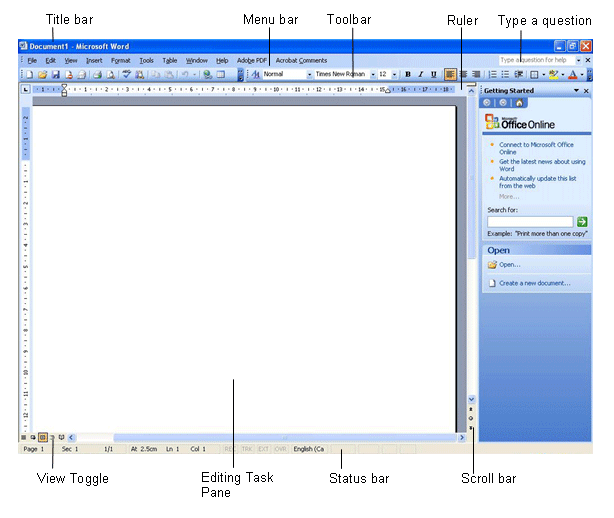
Let’s take a look at the different parts
of the screen. We’re going to focus on all of these elements in detail
later on, so don’t panic if the commands or concepts don’t make sense.
Right now, our goal is to get a general idea of how to use this screen.
|
Title bar |
On the left
hand side, the title bar displays the title of the document
you’re working on and the name of the program. To the far right
of the title bar, you have buttons to maximize, minimize,
restore, and close the window. |
|
Menu bar |
You can
click on any of these items (File, Edit, View, Insert, Format,
Tools, Table, or Window) to view a list of commands.
|
|
Type a question
for help |
If you need
help, type a question in this box, press Enter, and answers will
appear in a pane. |
|
Toolbars |
Word has 19
different toolbars, and almost unlimited ways of customizing all
of them. The two that you see here are the standard toolbar and
the formatting toolbar.
|
|
Rulers |
Use these
vertical and horizontal rulers to set tabs, margins, and table
sizes.
|
|
Editing window |
This is
where you’ll type, edit, and customize your document.
|
|
Scroll bars |
Drag these
vertical and horizontal scroll bars to see more of your
document. You can use the buttons where the two scrollbars meet
(circled in red in the sample above) to use the document browser
to navigate amongst specific objects (such as fields, comments,
and pages).
|
|
Task Pane |
Task panes
are a new feature in Office 2003. They can display lots of
different information, like help, templates, mail merge tools,
or a getting started wizard like you see in the sample above.
You can click the down arrow (▼) next to the close button in the
top right-hand corner of the task pane to change which pane is
displayed.
|
|
View
toggle |
Use these
five buttons to change your view. |
|
Status bar |
Displays
location co-ordinates and status buttons for your documents. |
|


