As you start using Microsoft Word more and more, you’ll be creating longer, more complex documents. In those cases, it can be time-consuming to use the scroll bar. Luckily, there are some more direct ways of accessing specific parts of your document.
The first is by using your keyboard. Between the part of the keyboard which contains all the letters and the number pad, should be a section with Insert, Home, Page Up, Delete, End and Page Down keys. Four of these keys have special functions:
All of these movements depend on where your cursor is when you press the button.
Another way to navigate quickly is to use the Go To tool. You can get to this tool through one of these methods: - Use the Ctrl + G shortcut - Click the Edit menu and click Go To.
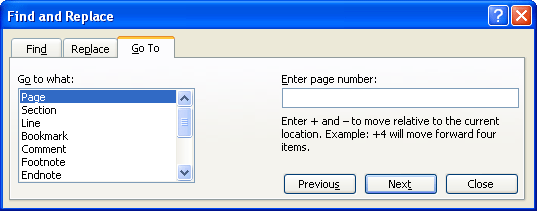
The Go To box looks like this:
You can see from the sample above that the Go To box is just another tab of the Find and Replace dialog box.
Here’s how we can use the Go To box. First, pick the item you want to go to in the left hand side. Then, type the information (such as the page number, section number, or comment) you want to jump to in the text box on the right hand side.
Once your information is complete, you can click the Next button to go to the next instance, or previous to go to the previous instance of what you typed. Once you’ve found what you’re looking for, click Close. |