|
1. |
Make sure Microsoft
Office Word 2003 is not open.
Click the
Start
Menu
and choose
Programs
or All
Programs.
Find the
Microsoft Office
folder and click it.
Click
Microsoft Office Word
2003.
 |
|
|
|
|
2. |
Once Word is open,
place your mouse on the
vertical scroll bar.
Hold down the left mouse button and drag the scroll bar to the
bottom of the screen.
|
|
|
|
|
3. |
Click the
Format
menu.
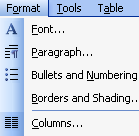
Click the
chevrons
at the bottom of the menu. 
|
|
|
|
|
4. |
Once the menu is
expanded, click in the Format
menu again to close the menu. |
|
|
|
|
5. |
Click the
Tools
menu and click
Options.
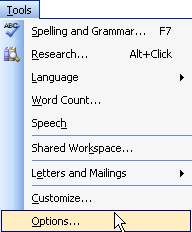 |
|
|
|
|
6. |
Uncheck the first
box (Startup
Task Pane)
of the first tab (View).
Click
OK.
 |
|
|
|
|
7. |
Right-click a blank
area beside the toolbars or the menu bar. A long menu should pop
up. |
|
|
|
|
8. |
Click on
AutoText.  |
|
|
|
|
. |
Click the
View
menu and click
Toolbars.
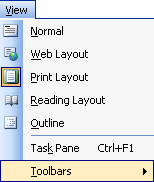
You will see that
AutoText has a check next to it. Click
AutoText
to remove the check.  |


