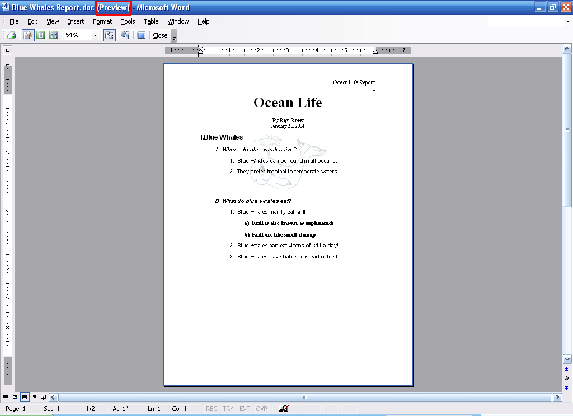
To open print preview, just click the File menu and click Print Preview. You’ll see this window:
One way you can tell that we’re in preview mode is by the title bar. In the sample above, you can see that the word Preview (circled in red) appears between the name of our document and the name of our program.
The main part of your screen will show your text, zoomed out to show a whole page. (Depending on the amount of text you have, you may or may not be able to read the contents of the page.)
Once you’re done looking at print preview, you can click the Close button on the standard toolbar.
|