|
1. |
Open
Microsoft Office Word 2003.
(If you already have Word open, close and re-open it.)
Open the
Blue Whales Report
from the Sample Files Folder. |
|
|
|
|
2. |
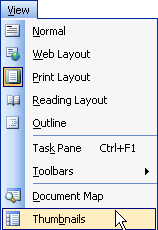
Click the
View
menu and click
Thumbnails.
|
|
|
|
|
3. |
Click the
second page
in the thumbnail pane. |
|
|
|
|
4. |
Click the
View
menu and click
Thumbnails
again to close the pane. |
|
|
|
|
5. |
Click the
Document Browser
and click By
Section
( ). ).
Click the
Next Heading ( ) button
twice and see how your location in the document changes. ) button
twice and see how your location in the document changes.
Click the
Previous Heading button ( ) once
and see how your location in the document changes. ) once
and see how your location in the document changes. |
|
|
|
|
6. |
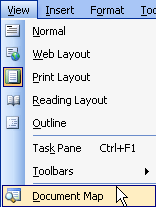
Click the
View
menu and click
Document Map.
|
|
|
|
|
7. |
Click on the
What do sea turtles look like?
item in the document map. |
|
|
|
|
8. |
Click the
View
menu again and click
Zoom.

Click the
Whole Page
radio button
and see how the preview changes.
That isn’t really
the view we want, so click the
Multiple Pages
radio button. Then, click the computer and choose
1 by 2 pages.
Click
OK. |
|
|
|
|
9. |
Click the
Zoom
menu on the standard
toolbar and click
Whole Page.

|
|
|
|
|
10. |
Close
Microsoft Office Word
2003. |


