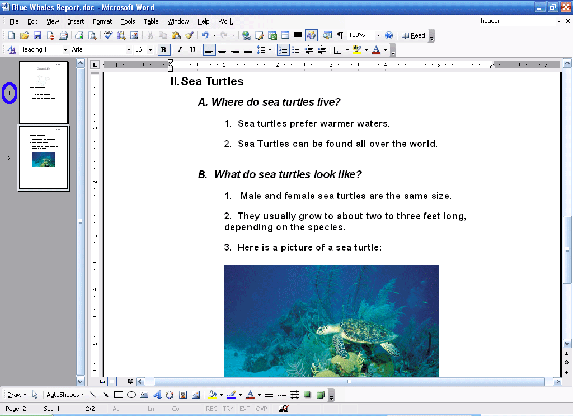
You can enable thumbnails by clicking the View menu and choosing Thumbnails. When you have this option enabled, you will see a vertical strip of thumbnails on the left hand side of your document. Each thumbnail represents a page of your document (the number is on the left hand side of the thumbnail) and shows a very small preview of that page’s contents. You can click on a thumbnail to jump to that page. Here’s an example:
We’ve circled the page number next to the thumbnail in blue since it’s very small. You can see how useful thumbnails can be for navigating through a document. If your document is more than four or five pages, you will need to use the scroll bar next to the thumbnail pane to navigate your thumbnails.
|