You can use the zoom tool to see
your document really up close or really far away. The quickest way to
set zoom is to use the button on the standard toolbar (
At the bottom of the Zoom menu, we also have some pre-defined choices: Page Width, Text Width, Whole Page, and Two Pages. The last two items are self-explanatory (one will zoom out to show your entire current page on one screen; the other will zoom out to show two pages on one screen). Let’s look at the advanced zoom options for an explanation of Page Width and Text Width.
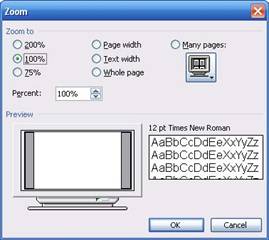
You can access both basic and advanced zoom options by clicking the View menu and clicking Zoom. When you do this, you’ll see the window pictured below.
This window has three different sets of options. The first column provides radio buttons so you can choose a 200, 100, or 75 percent zoom level. You can also type in a number in the text box at the bottom of this column.
The next column offers these options: - Page width will fill the editing window with the contents of your page. - Text width will magnify your text so it takes up the entire editing window, eliminating margins. - Whole page will zoom out to show the entire current page on the screen.
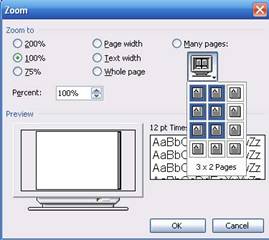
The third column has just one option: Many Pages. You can click this option, and then click the computer icon to tell Word how many pages you want displayed. Here’s an example:
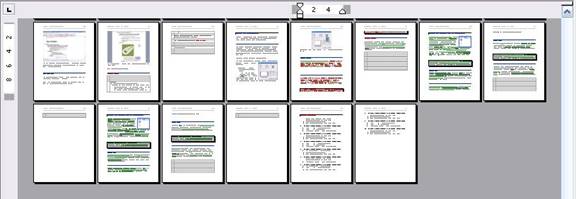
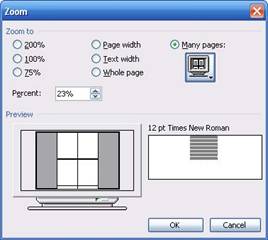
The maximum number of pages you can set is a four by eight layout, which would look like this:
Note that you can only choose one zoom option (column, text-based, or multiple pages). The number typed in the percentage box will change to reflect your other choices. In the bottom of the zoom window, you can preview how your page will look. The text box on the right hand side will also show you what effect your zoom choices would have on the default font (Times New Roman 12).
|


 ).You can
type in this menu or you can click the drop-down arrow to pick from a
list of pre-defined percentages. (The percentage is the amount you want
to enlarge or shrink the document; for example, choose 75% to see your
document at 75% its actual size. You can go the other way, too; for
example, you can type 200 to see your document twice its actual size.)
).You can
type in this menu or you can click the drop-down arrow to pick from a
list of pre-defined percentages. (The percentage is the amount you want
to enlarge or shrink the document; for example, choose 75% to see your
document at 75% its actual size. You can go the other way, too; for
example, you can type 200 to see your document twice its actual size.)