Microsoft Office Word 2003 is one of the most flexible word processing programs out there. Millions of different people use it to create thousands of different types of documents. Because of this, there are a few different ways to view your document. In this lesson, we’re going to take a look at each of them. Some of the views are for creating more advanced types of documents (such as outlines and Web pages), so don’t worry if you don’t understand those aspects. We’re just going to focus on each view is different.
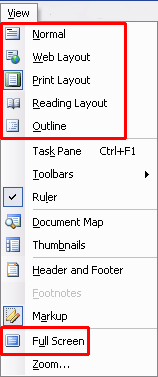
First, let’s look at how to change views. Your first step is to click on the View menu. The first five options are all views (Full Screen is tucked away at the bottom); the one you’re currently using has a square around it. To change your view, click on the one you want. That’s it!
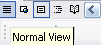
You can also use the buttons in the bottom left corner of the Word window (next to the horizontal scroll bar) to change your view. As you mouse over each one, a ScreenTip will appear to identify it. The view you’re currently using will have a blue box around it.
Remember that there is no default view in Word. Typically, documents will open in print layout, but it depends on what view was last used.
Let’s look at the first view in the list: Normal View.
|