|
1. |
Open
Microsoft Office Word 2003.
(If you already have Word open, press Ctrl + N so we can use a
fresh document.) |
|
|
|
|
2. |
Type this text and
see what happens:
Every day I visit
www.cnn.com to check the news.
You should see the
text www.cnn.com change to a link. |
|
|
|
|
3. |
After the word
news, type
Another site I go to often is Microsoft Office Online. It has
great resources like training, ClipArt, and templates. |
|
|
|
|
4. |
Select the text
Microsoft
Office Online. |
|
|
|
|
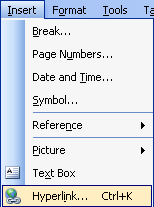
5. |
Click the
Insert
menu and click
Hyperlink.
|
|
|
|
|
6. |
In the Insert
Hyperlink dialog, make sure the first option (Existing
File or Web Page)
is selected.
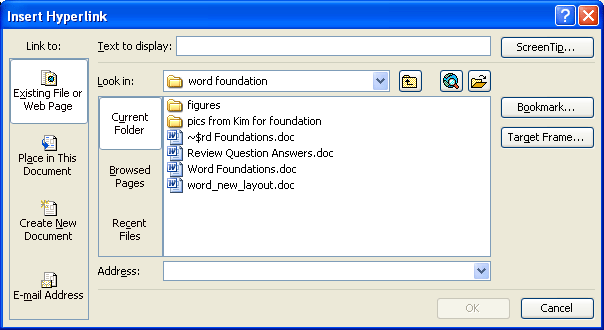
In the Text to
Display box, you should see Microsoft Office Online. (If this
text is not there, type it.)
In the Address box,
type
http://office.microsoft.com.
Click
OK. |
|
|
|
|
7. |
Make sure your
cursor is after the word templates and press the Enter key. Type
this text:
You can learn about more of my favourite web pages by contacting
me. |
|
|
|
|
8. |
Select the text
contacting me.
Click the
Insert
menu and click
Hyperlink.
Click the
E-mail Address
tab.
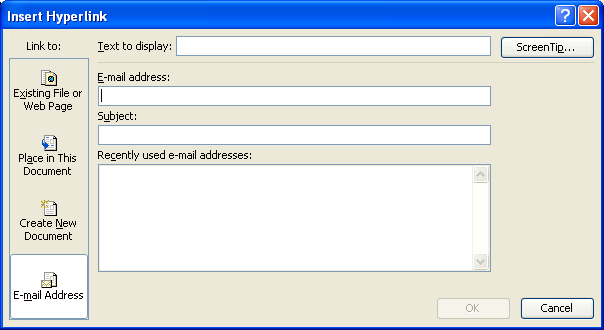
In the E-mail
Address field, type
your e-mail address.
Click
OK. |
|
|
|
|
9. |
Place your mouse
over the text cnn.com. Note the pop-up that appears.
Then, hold the Ctrl
key and click on the text www.cnn.com. |
|
|
|
|
10. |
Save your document
if you like, then close
Microsoft Office Word 2003. |


