Microsoft Office Word 2003 is pretty smart. If you type a Web address (say, http://www.microsoft.com), Word will automatically turn it into a hyperlink. You can manually turn text into a hyperlink by following these steps: - Select the text you want to link. - Click the Insert menu and click Hyperlink, or use the Ctrl + K shortcut.
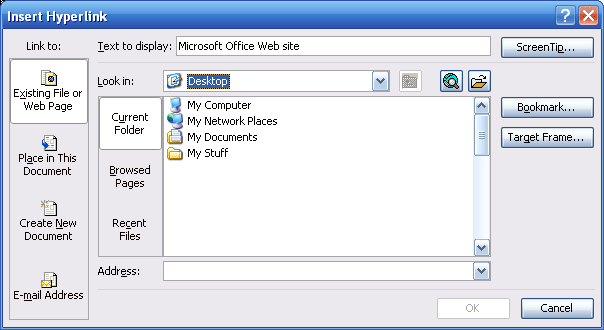
When you finish those commands, you will see the below window:
It looks awfully complicated, but there are basically only two fields that you need to worry about. The first is the one at the top, which says Text to display. This is the text that will turn blue and will contain the actual link. By default, the text you have selected will appear in here. (You can type in the box to change the text.) Then, at the bottom, type the Web address you want to point to (for example, http://myfavouritesite.com). Finally, click OK to save your changes, or click Cancel to discard them. (The OK button will not be lit up until both the Text to Display and the Address fields are filled in.)
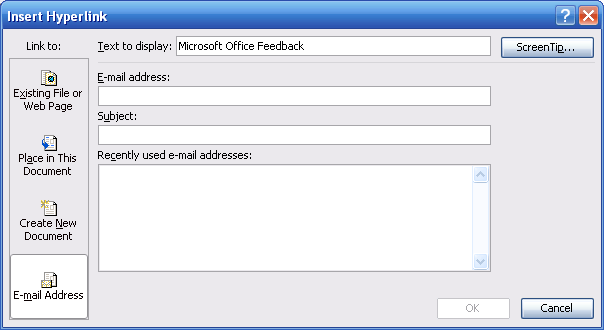
You can insert a link to an e-mail address one of two ways. You can simply type mailto:<e-mailaddress> in the Address field (replacing <e-mail address> with the address you want to link to). Or, you can click on the E-mail Address option on the left hand side of the Insert Hyperlink window. That tab looks like this:
This box is similar to the Web Page box. You can change the text you want to display as a link using the first box. Then, type in the e-mail address you want to use. (You can enter multiple e-mail addresses like this: address1@company.com; address2@company.com.) If you have recently used the address in a hyperlink, you can click its entry in the bottom box to enter it in the E-mail address field.
Next, type in the subject you want the e-mail to have. Then, click OK to complete the link!
We’ve only looked at adding links to text, but you can use the same steps to apply hyperlinks to pictures. Just select the picture, click Insert, click Hyperlink, and fill in your information.
|