|
1. |
Open
Microsoft Office Word 2003. |
|
|
|
|
2. |
Open the
Blue Whales document that we
saved from our last practice exercise. (You can also open the
Blue Whales Edited document from the sample files folder.) |
|
|
|
|
3. |
Place your cursor after
the sentence “Here are several pictures of whales.” |
|
|
|
|
4. |
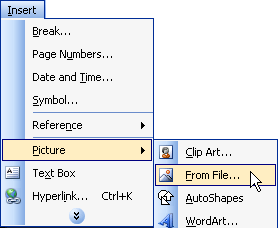
Click the
Insert menu, choose
Picture, and choose
From
File.
Browse to the
Sample Files folder.
Click on
bluewhale.jpg and click
Insert.
|
|
|
|
|
5. |
That picture is pretty
small!
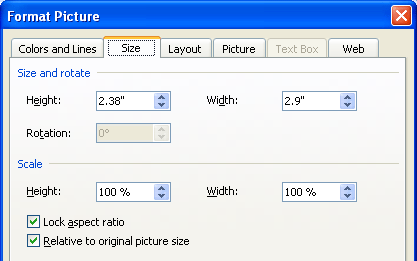
Double-click the picture
to open the Format Picture dialog box so we can make it bigger.
Click the
Size
tab. First, make sure the
Lock
aspect ratio box is checked.
Then, in the Size section, type
2
for Height. (The width should change automatically.)
Click
OK.
|
|
|
|
|
6. |
Place your cursor after
the sentence “Here are several pictures of whales,” but before
the picture.
Press
enter
twice.
Then, click the Centre
Alignment button ( ) on the
standard toolbar. ) on the
standard toolbar. |
|
|
|
|
7. |
Now, place your cursor
at the beginning of the second paragraph (it starts with “They
are an endangered species…”). |
|
|
|
|
8. |
Click the
Insert menu, choose
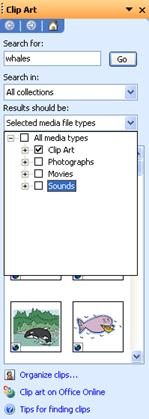
Picture, and click ClipArt.
In the ClipArt task
pane, type
Whales in
the
Search In
box.
In the
Results Should Be box, click
the drop-down menu. Uncheck
Movies,
Photographs, and
Sounds.
Click
Go.
|
|
|
|
|
9. |
In the results pane,
pick any picture you want and click
Insert. |
|
|
|
|
10. |
Press the
Enter
key to move your text down to the next line. |
|
|
|
|
11. |
Then, right-click your
picture and click
Format.
In the Format Picture
dialog box, click the
Size
tab. Make sure the
Lock
aspect ratio box is checked,
then type
2 for Height
in the inches box. (The Width should change automatically.)
Click the
Web
tab and type
This is my whale picture.
in the text box.
Click the Colors and
Lines tab. In the first section (Fill), click the drop-down menu
next to
Color.
Choose a background colour that will complement your picture.
(This option will only have an obvious effect if your ClipArt
picture has a lot of white space.)
Click
OK. |
|
|
|
|
12. |
Save your document to
your desktop as
Blue Whale With Picture.doc.
Close Microsoft Office
Word 2003. |


