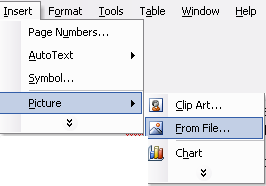
If you have a
specific picture you would like to use, you can insert that instead of a
ClipArt image. To do this, click the Insert menu, choose Picture, and
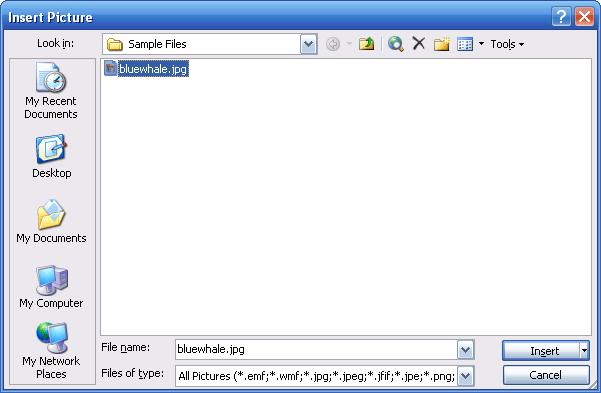
choose From File. (You can also click the Insert Picture ( Once you perform either of those commands, a dialog box will open:
Simply browse to your picture, click it, and click Insert. The picture will be inserted wherever your cursor was before you performed the Insert Picture command.
There is one catch to inserting a picture. The picture must be in a supported format, meaning it must be one of these file types:
So, once you’ve selected your picture in the dialog box, click Insert, and your picture will appear!
|


 ) button
on the drawing toolbar if you have it open.)
) button
on the drawing toolbar if you have it open.)