One of the best features of Word is its spelling and grammar check. At your command, Word will go through your document and let you know if it finds any errors in spelling or in grammar. The most important thing to remember about spell check, however, is that it is far from perfect. It won’t notice if you’ve typed “their” instead of “there,” and some correct words it will pick up as misspelled (like the word “unchecking”). So, even after you’ve done a spell check, it’s a good idea to read your document over once or twice to make sure you haven’t missed anything.
To start a spelling and grammar check, use one of these commands:
-
Click the Spelling and Grammar button ( - Press the F7 key on your keyboard. - Click the Tools menu and click Spelling and Grammar.
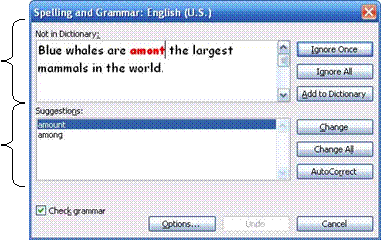
When Word finds a spelling error, here is what you will see:
The top part of the window shows you the sentence it is currently checking. (The title at the top of the window tells you why it identified that word; in this case it says Not in Dictionary.) The word it thinks is misspelled is in a different colour in this window. You can type in this window to make changes to the sentence shown and click the Change button.
At the bottom of the screen, Word will tell you what it thinks the correct spelling of this word is.
Here’s an overview of what the buttons on the right hand side do:
Once you have clicked one of those options, Word will continue checking your document for errors. You will have to go through this process for each word that is identified as misspelled.
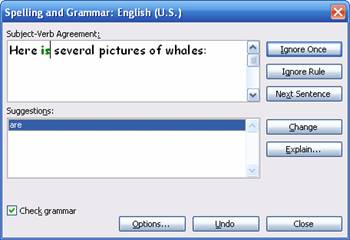
Here’s the window you will see if Word picks up a grammar error:
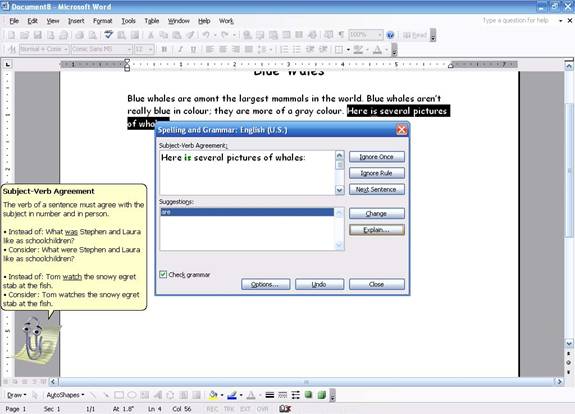
The same concepts apply to this box. At the top part of the screen, Word will show you the sentence it thinks is grammatically incorrect, and will highlight the trouble part of the sentence. (You can type in this window to make changes to the sentence shown.) At the top of this window will be a brief explanation of what the trouble is; in the sample above it says Subject-Verb Agreement.
The bottom part of the grammar checking screen gives you suggestions on how to change the word or sentence. We also have buttons on the right hand side of the screen to choose how we want to treat this error:
You can also click the Undo button to undo your last change, or click the Close button to close spelling and grammar check. You can also uncheck the “Check grammar” box at the left of the screen to disable the grammar check.
|


 ) on the
standard toolbar.
) on the
standard toolbar.