|
You can use text
alignment to change the position of your text in a line. Let’s look at
the three types:
|
Right Align |
Right
alignment aligns your text with the right-hand margin. You can
enable right alignment by pressing Ctrl + R on your keyboard, or
by clicking the right align button on the formatting toolbar. 
|
|
Centre Align |
Centre
alignment places your text in the middle of the line. You can
turn on centre alignment by pressing Ctrl + E on your keyboard,
or by clicking the centre align button on the formatting
toolbar. 
|
|
Left Align |
Left
alignment aligns your text with the left-hand margin. You can
enable left alignment by pressing Ctrl + L on your keyboard, or
by clicking the left align button on the formatting toolbar. 
|
Here are some
alignment examples:
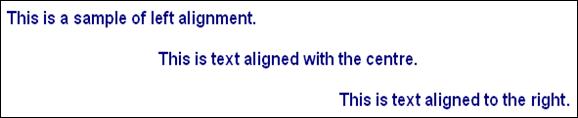
Note that you can
use text effects in combination with alignment. This can be useful when
creating text that needs to stand out
like
report titles.
|


