|
1. |
Open
Microsoft Office Word 2003. |
|
|
|
|
2. |
Open your Christmas
Party Ideas document from your desktop or from the Sample Files
folder. |
|
|
|
|
3. |
Select the first
letter of both paragraphs (S for Sue and T for The). Remember to
hold down the Control key to select items in different
locations. |
|
|
|
|
4. |
Click the
Format
menu and click
Drop Cap.
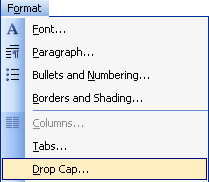
Fill out the
Drop Cap
dialog so it contains this information:
Position:
Dropped
Font:
Garamond
Lines to Drop:
3
Position From Text:
0.1
Click
OK. |
|
|
|
|
5. |
Select the text
December 14. |
|
|
|
|
6. |
Click the
Format
menu and click
Font.
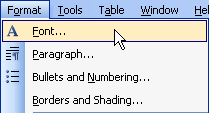
|
|
|
|
|
7. |
Choose any
Underline Style
you want.
Set the colour to
green.
Click
OK. |
|
|
|
|
8. |
Place your cursor
after the text December 14. Press the Caps Lock key on your
keyboard and type this text:
MARY HAS SAID THAT THIS COINCIDES WITH THE ANNUAL GENERAL
MEETING. WE NEED TO WORK WITH HER SO THAT THE CHRISTMAS PARTY
CAN BE AFTERWARDS. |
|
|
|
|
9. |
Oops! That text
shouldn’t be in caps. Let’s select the two sentences we just
typed. Then, click the
Format
menu and click
Change Case.
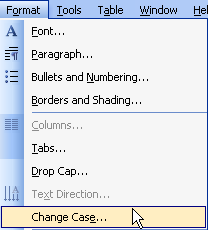
|
|
|
|
|
10. |
Click
Sentence Case
and click OK. |
|
|
|
|
11. |
Save
your document
to your desktop as Christmas Party Ideas. |


