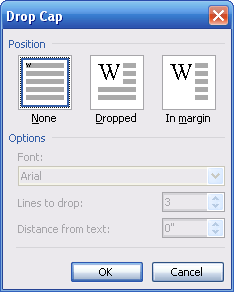
One useful effect that is not in the Font dialog box is drop cap. To insert a drop cap, click the Format menu and click Drop Cap. You’ll see the screen pictured on your left. (You must have a paragraph already typed to be able to insert a drop cap.)
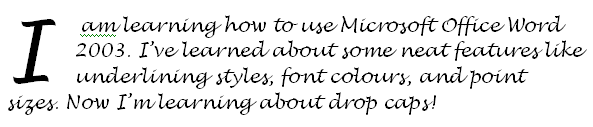
A drop cap is a capital letter at the beginning of a paragraph that is usually larger than other letters and that is dropped down into the paragraph. Drop caps can be a good way to highlight portions of your document, or just to make it more visually appealing.
There are three settings for drop caps: None, Dropped (which places it in the text), or Margin (which places it beside the text). Once you have chosen a setting, you can choose the font, how many lines the letter should drop, and the distance from the text.
Here’s an example of a drop cap using the Dropped setting, with a .25 distance from text:
Here’s how the same text would look if you used the Margin setting, also with a .25 distance from text:
And here’s how the text would look if you used the Algerian font for the drop cap, leaving the distance from text at .25:
If you want to change the drop cap later, just select it, click the Format menu, and click Drop Cap to open the window we used to set up the drop cap.
|