After you’ve used Word for a while, you’ll find that sometimes things don’t go as planned. You may insert a picture and things will go haywire, or you’ll add formatting that doesn’t look like you expected.
There’s an easy way in Word to undo your last action. Fittingly enough, it’s called Undo. You can undo your last action using one of these methods:
-
Click the Undo arrow ( - Click the Edit menu and click Undo. - Press Ctrl + Z.
Let’s look at our Company Report document for an example. Let’s say our last action was typing the last line in this sample:
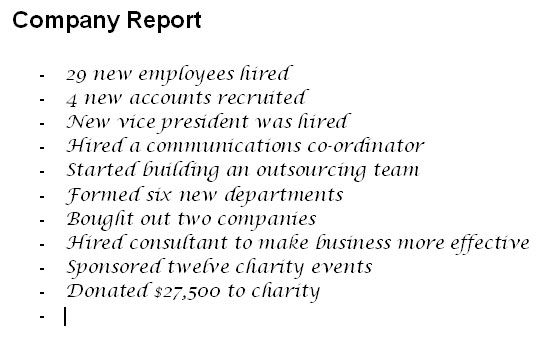
Then you decide that maybe not everyone needs to know how much the company made. By using one of the Undo commands we just talked about, we can erase that whole sentence with one command:
This can be a lot quicker than deleting the sentence or selecting it and cutting it.
But what if, after you’ve undone the action, you decide that maybe everyone deserves to know just how good the company is doing? Well, you don’t have to re-type the sentence. You can use the Redo command! You can redo an action using one of these commands: - Ctrl + Y
-
Click the Redo icon on the toolbar ( - Click the Edit menu and click Redo.
In this example, our deleted text will reappear like magic.
Redo is also known as Repeat because you can use it to redo actions. Let’s say we decide to apply some formatting to our document. We can just apply it to one line and then select other lines and use the repeat command to repeat the formatting on those lines. This can be much quicker than selecting each line and then finding the correct style for it, especially if you have a lot of custom styles set up. Some actions can’t be repeated, so don’t be alarmed if the Redo button is greyed out, or the entry under the Edit menu says Can’t Repeat.
|


 ) on the
standard toolbar.
) on the
standard toolbar.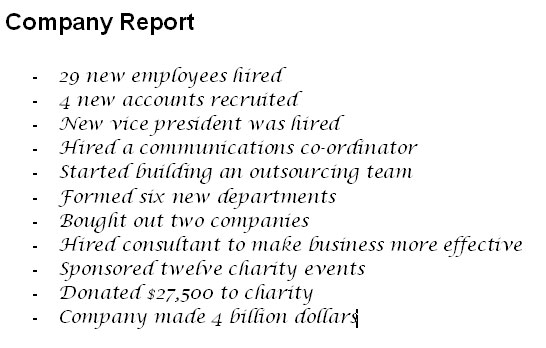
 )
)