The most essential part of managing your documents is saving files. You can save files using one of the following ways:
- Use the Ctrl + S keyboard shortcut.
-
Click the Save button ( - Click the File menu and click Save. - Click the File menu and click Save As.
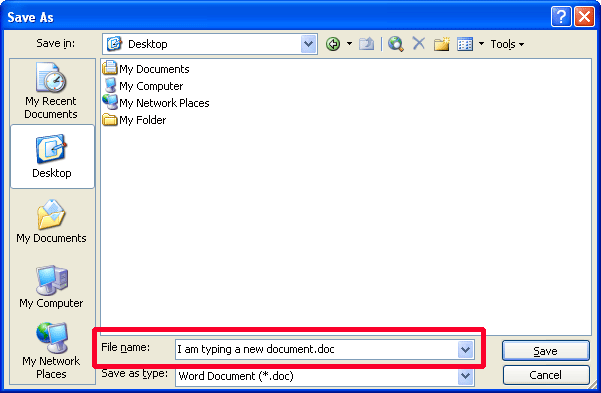
So, let’s say you’re typing away and you decide to save your file for the first time. No matter which of the methods above you use, you’ll see the below window:
First, you need to pick where to save your document. You can choose from any of the common locations in the My Places bar on the left hand side, or you can click the drop-down arrow at the top of the screen, next to Save As. Once you pick a location by clicking it, its contents will be displayed in the large white window. (In the sample above, we’re looking at the desktop. The desktop has My Documents, My Computer, My Network Places, and a folder called My Folder.)
Let’s talk about
folders for a moment. Folders are a way to manage your documents, like
file folders in a filing cabinet. To create a new folder click the New
Folder button in the top right hand corner of the window.
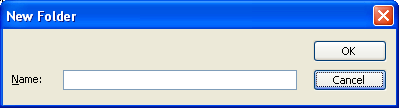
All you have to do is enter the name you want to give your folder and click OK. Then, you’ll see your folder in the main white window. You can then double-click it to place your document there.
Once you’ve picked the location for your file, we need to give it a name. To do that, type your file name in the proper text box:
When you are done typing in your file name, click Save to finish saving your file.
Once you’ve entered all the information the first time, you can click File and click Save, click the Save button on the standard toolbar, or use Ctrl + S, again to save any other changes you have made without having to specify the file name and location again.
You can also save your file with another name or to a different place by clicking the File menu and clicking Save As. You’ll still see the same dialog, but you can pick another location or another name for your file. This is a great tool if you want to save a copy of your file somewhere else. (For example, to save to a diskette, you would choose your disk drive from the Save In drop-down menu, enter the file name, and click Save. Microsoft Office Word 2003 can only save directly to floppy drives, not CD or DVD-ROM drives.) |


 ) on the
standard toolbar.
) on the
standard toolbar.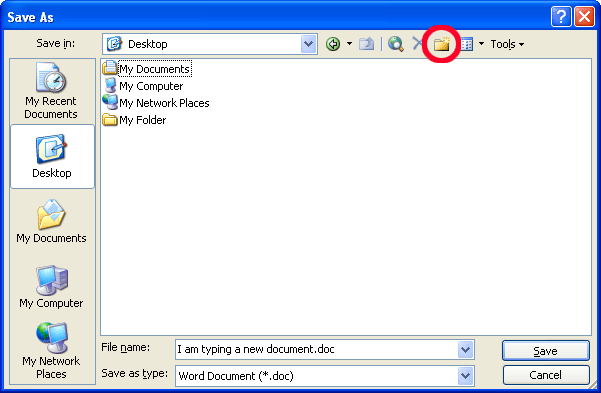
 You’ll
be prompted to enter the name for your new folder:
You’ll
be prompted to enter the name for your new folder: