|
The document
browser is the small dot between the double up and down arrows at the
bottom of your vertical toolbar. You can see this section circled in the
sample below:
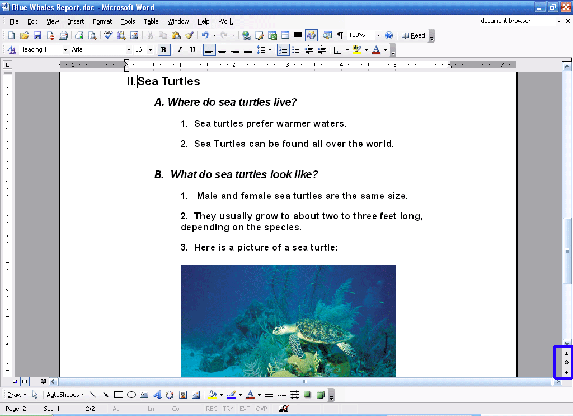
You can use the dot
to pick a browsing object, and then use the arrows to move to the
previous ( ) or next
( ) or next
( ) object.
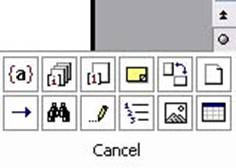
When you click on the dot, you will see the menu pictured on the right.
Let’s look at each of the choices. Most of them refer to elements we
haven’t covered yet, but it’s useful to know how to browse by these
elements for when we do learn about them. ) object.
When you click on the dot, you will see the menu pictured on the right.
Let’s look at each of the choices. Most of them refer to elements we
haven’t covered yet, but it’s useful to know how to browse by these
elements for when we do learn about them.
|
 |
Browse by
field. (Fields are used in forms and mail merge, topics we
haven’t covered yet.)
|
|
 |
Browse by
endnote. |
|
 |
Browse by
footnote. |
|
 |
Browse by
comment.
|
|
 |
Browse by
section. (Remember how our Blue Whales report had sections?) |
|
 |
Browse by
page. (This is the default choice.) |
|
 |
Browse
using the Go To box. (This brings up the same window as if you
had clicked File and clicked Go To.) |
|
 |
Browse
using the Find dialog box. (This brings up the same window as if
you had clicked File and clicked Find.)
|
|
 |
Browse by
edits. (This is a tool used when reviewing documents.) |
|
 |
Browse by
heading. (Headings are also used in outlines.) |
|
 |
Browse by
graphic. |
|
 |
Browse by
table. |
So, you would first
select an object from the document browser. Then, you could use the
double up or down arrows to move to the previous or next object. (You
can also use the Ctrl + Page Up or Ctrl + Page Down shortcuts.) So, if
we were creating an outline, we could select Browse By Section,
and then use the up or down arrows to easily move between sections.
|


