One last function we’re going to look at is page numbering. The page numbering tool lets you automatically insert page numbers on every page. Not only does this save you a lot of work, it makes sure your page numbers are consistent.
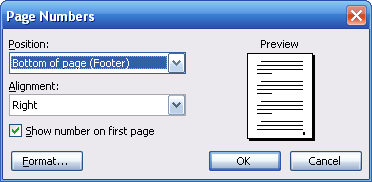
To add page numbers to your document, click the Insert menu and click Page Numbers. You’ll see this screen:
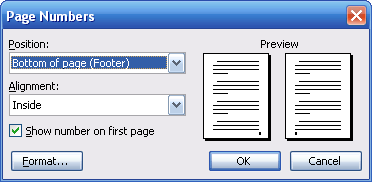
You can use the options on the left hand side to specify the position of your page number (at the top or bottom of the page) and its alignment (left, right, centre, to the inside of facing pages, or to the outside of facing pages). With each choice, you can see a preview of your page numbers, like this:
You can also specify whether or not you want to show a page number on the first page using the check box below the drop-down menus. If you’re happy with these settings, click OK.
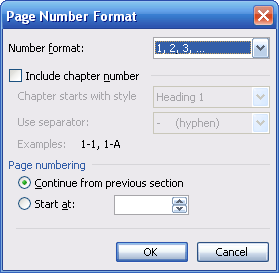
If you’d rather specify some more options, click the Format button to see the menu pictured below. We haven’t covered all of the concepts in this box (such as chapters and styles), so don’t worry if you don’t understand how them right now.
The first set of options let you choose the format of your page numbers. You can pick from numbers with periods or dashes, from upper or lower case letters, or from upper or lower case Roman numerals.
The next set of options allows you to include the chapter number with the page number. If you choose this option, you can tell Word what style your chapter starts with and what separator you want to use between the page number and the chapter number.
The last set of options allows you to specify whether to continue page numbering or to start numbering from a different point.
Once you’re happy with your choices, click OK to go back to the main page numbering screen. Then, click OK again to apply your changes.
You can add page numbers to your document at any time. Whether you add them when you start typing your document, after you’ve typed 100 pages, or after you’ve finished it, Word will always keep them updated and consistent. If you set page numbers and then decide to change them, just go back to the Page Numbers box and make your changes. (We’ll talk about how to remove page numbers later on.)
|