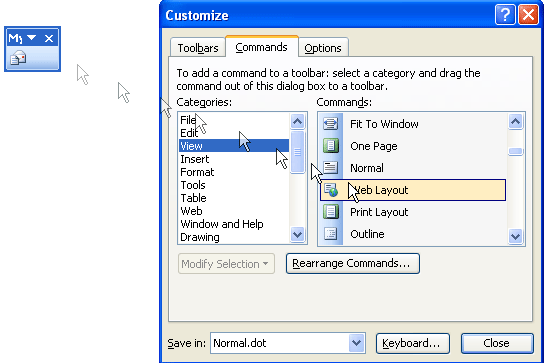
If you click the Customize button in the first sub-menu, we’ll get a different way of modifying toolbars and menus:
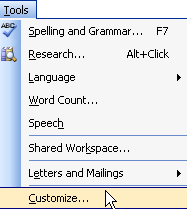
You can access this window by clicking the Tools menu and clicking Customize.
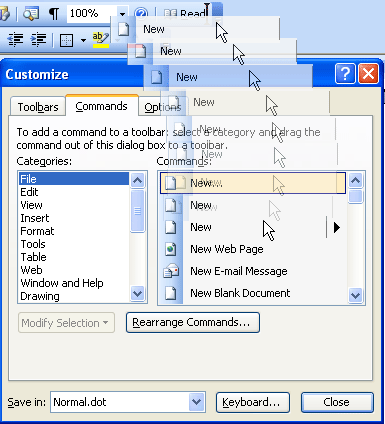
We’re going to start with the middle tab (Commands) which is shown above, as this is the tab the Customize window opens to. This tab has two main parts: a categories column and a commands column. The categories column has a listing of the different menus and toolbars. Once you click on a category, its contents will be displayed in the Commands tab. You can take any item from the Commands window and drag and drop it to a toolbar, in an existing menu, or on the menu bar itself (see below image).
You can even create a new menu; we’ll talk about how to do that in the intermediate section.
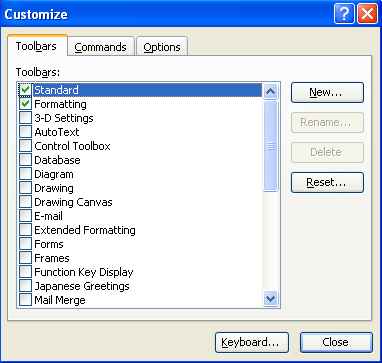
Let’s move over to first tab in the Customize window: Toolbars.
The main part of this window works the same way as the view menu or the right-click menu: you can check a toolbar to have it displayed, or uncheck it if you don’t want it shown. You’ll also notice some toolbars listed here that aren’t listed in the View or Right-Click menu.
You can click any toolbar to select it and click Reset to have it reset to the default state. You cannot rename or delete any pre-set toolbars; these options are only available for user-created toolbars.
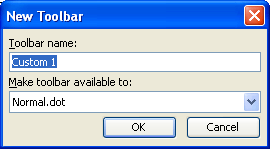
Let’s take a look at how to create your own toolbar. First, click the New button in the Customize window shown above. This window will appear:
Right now, just worry about the Toolbar Name field; don’t worry about the drop-down menu below it. So, all you have to do is type in the name of your new toolbar and click OK. (You can also click Cancel if you don’t want to create a toolbar.)
Once you click OK, your sample toolbar will be on the screen as well as the Customize screen:
Now, you can click back to the Commands tab, and drag and drop commands onto your toolbar. You can also move your toolbar anywhere we want by left-clicking on the title bar of the toolbar and dragging and dropping it to your preferred location. Your new toolbar will appear in the Customize window under the toolbars tab, in the view menu, and in the toolbar right-click menu with all the default toolbars. Once you’re done using the Customize window, just click Close to return to the main Word screen.
Remember that if you want to delete your toolbar or change its name at any time, just go back to the Customize screen and click the Toolbars tab. If you want to change its buttons, however, you must go back to Tools, click Customize, and click the Commands tab. You cannot right-click on it to change the buttons. |