SECTION 4
Lesson 4.1: Using Layouts and Views


1.

Open Microsoft Office Word 2003.


2.

Open the Blue Whales Report document from the sample files folder.


3.

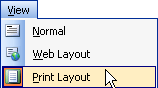
Click the View menu and make sure Print Layout is selected. (If it’s not, click it to select it.)


Scroll through the document and note these elements:

-          Header: At the top right corner of each page (has text Ocean Life Report and the page number)

-          Pictures: In the background on page one and in line with text on page two.

-          Rulers: You should see both the horizontal and vertical ruler.

-          Scroll bars: You should also see both the horizontal and vertical scroll bars.

-          There will also be white space between the pages. Click this space to hide it.


4.

Click the View menu and click Normal.


Scroll through the document and see how the document looks different. The first picture should be missing, as well as your page breaks, headers, and vertical ruler.


5.

Click the View menu and click Full Screen.

Scroll through the document, and then click Close Full Screen.


6.

Click the View menu and click Outline.


7.

Click the Show Level menu () and click Show Level 2. See how this changes your view?


8.

Press Alt + R and read through the report.


9.

Close Microsoft Office Word 2003