|
1. |
Open
Microsoft Office Word 2003.
(If you already have Word open, press Ctrl + N to create a blank
document.) |
|
|
|
|
2. |
Type the following
paragraph:
This is a double-spaced, right-aligned paragraph with a hanging
indent. I am going to set these options by clicking the Format
menu and clicking Paragraph. Hanging indents mean all lines
except the first are indented. |
|
|
|
|
3. |
After you have
typed this paragraph, make sure your cursor is anywhere in it
(even at the end).
Click the
Format
menu and click
Paragraph.
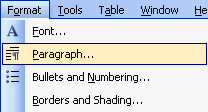
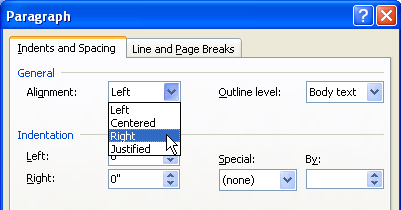
For Alignment,
click the drop-down arrow and click
Right.
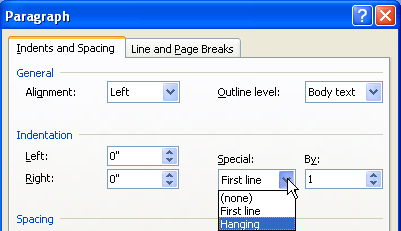
In the Indentation
section, choose
Hanging
from the Special menu. In the By box, type
1.
In the Spacing
section, select
Double
from the Line Spacing Menu.
Look in the preview
box and click
OK. |
|
|
|
|
4. |
Place your cursor
after the last line in the sample paragraph.
Press the enter
button twice to start a new paragraph. |
|
|
|
|
5. |
Click the
Format
menu and click
Paragraph.
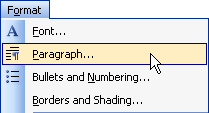
Change the
Alignment to
Centered.
Set the left
indentation to
1.5 by
typing in that text box. Change the Special indentation menu to
First Line.
In the By box, type
0.25.
In the Spacing
section, set Before spacing to
20. Then,
change the Line Spacing menu to
Double.
Click
OK. |
|
|
|
|
6. |
Type this
paragraph:
I just set some paragraph spacing options so they should be
applied right now. I should see a large space between my first
paragraph and this one. This paragraph is also aligned,
indented, and spaced much differently! |
|
|
|
|
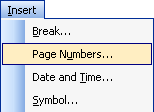
7. |
Click the
Insert
menu and click
Page Numbers.
|
|
|
|
|
8. |
Set the position to
Top of Page
and the alignment to
Outside.
Make sure the box
that says Show
number on first page
is checked. |
|
|
|
|
9. |
Click the
Format
button. Change the number format to
I, II, III.
Click
OK
and click OK
again. |
|
|
|
|
10. |
Look at the top
corner of your sample page. You should see a page number. |
|
|
|
|
11. |
Save your document
if you like and close Word. |


