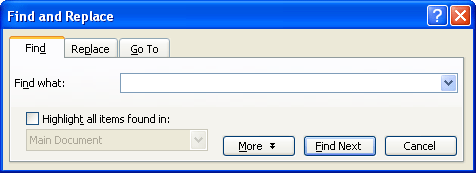
If you have a long document, it can be useful to have a tool to search through it. Luckily, Word has just the feature for you! To find text, click the Edit menu and click Find. (You can also use the Ctrl + F shortcut.) You’ll see this window:
To find text in your document, just type the text you’re looking for in the Find What text box. You can have Word highlight all the instances of that word or phrase by checking the Highlight all items found in box in the bottom left hand corner.
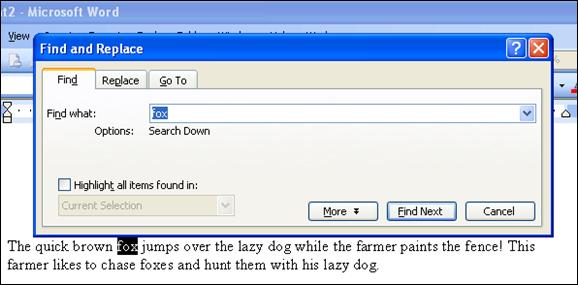
Once your text is entered, click the Find Next button. Word will select the first instance for you. You can stop there and close out of the box by clicking Cancel. If it’s not what you’re looking for, click Find Next again to find the next instance. Here’s an example:
The other option we’re going to talk about in the find dialog box is the replace tab. If you click the Edit menu, click Find, and click the Replace tab (or click the Edit menu and click Replace, or use the Ctrl + H shortcut), you’ll see this dialog:
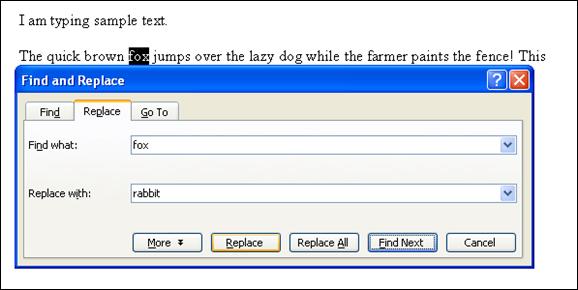
This window looks a lot like the find dialog. In the main part of the screen, type what you’re looking for and then type what you want to replace it with. Here’s what the buttons at the bottom do: - More: Opens advanced options which we will cover later on. - Replace: Will find the next instance of the word or phrase. Then, you must click replace again to confirm each replacement. - Replace All: Will find the next instance of the word or phrase. Then, click Replace All to replace every instance of this word. - Find Next: Finds the next instance of the word or phrase. - Cancel: Closes the dialog box without making any changes.
In the sample below, we’ve chosen to replace the word fox with the word rabbit. When we click Replace, it will find the first instance.
Then, we must confirm the replacement by clicking Replace or Replace All. Once we’re done, we can click Cancel to return to editing our document. |