There are a few ways to create a new document in Microsoft Word. We’re going to talk about the methods that are the easiest to use.
If you don’t have Word open, you can follow the steps listed. (You can still follow these steps if Word is open, but if that’s the case it’s easier to do it within the program.)
- Click the Start menu. - Click Programs or All Programs. - Click New Office Document at the top of the Programs/All Programs menu.
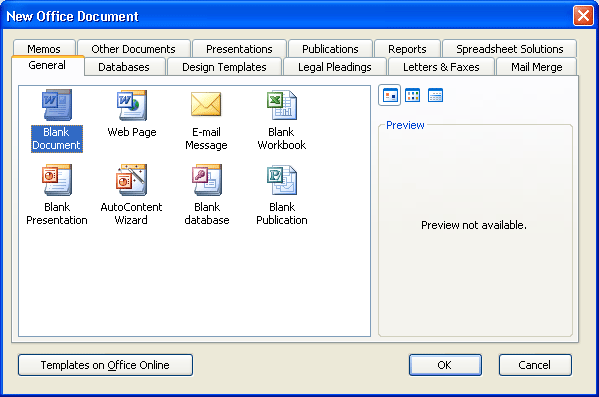
Once you click New Office Document, this window will open:
The contents of this box will vary depending on what Office programs you have installed, but the only item we’re concerned with at this point in time is the one already highlighted: Blank Document. Once Blank Document is selected, click OK and Word will open with a fresh document for you.
You may wish to open Word as normal from the start menu or from the icon on your desktop, because when you do so, Word automatically creates a blank document for you to type in.
If you’ve already typed in this document, you can open a new document from within Word using any of these methods: - Use the Ctrl + N shortcut.
-
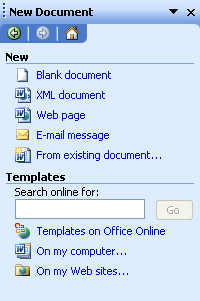
Click the New button ( - Click the File menu, click New, and click the Blank Document link in the task pane (normally on the right hand side of the screen), like the picture on the right.
|



 ) on the
standard toolbar.
) on the
standard toolbar.