SECTION 1
Lesson 1.2: Toolbars


1.

Make sure Microsoft Office Word 2003 is open. (Remember that we can open it by double-clicking the icon on our desktop or by using the Start menu.)


2.

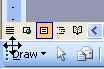
Click the drawing toolbar button () on the standard toolbar. You will see the drawing toolbar at the bottom of the Word screen.


3.

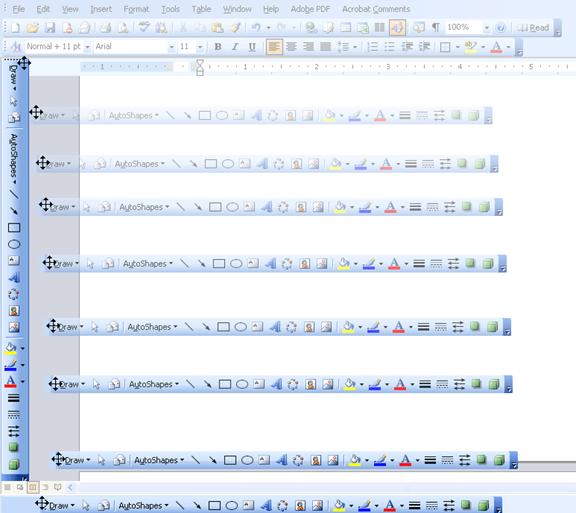
Drag and drop the drawing toolbar to the left hand side of your screen. This can be done by moving your mouse over the dotted edge on the left hand side of the toolbar.


4.

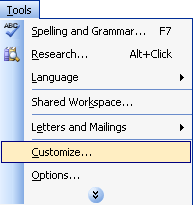
Click the Tools menu and click Customize.


5.

Click the Toolbars tab.


6.

Click the New button. Name your new toolbar My Toolbar. Click OK.


7.

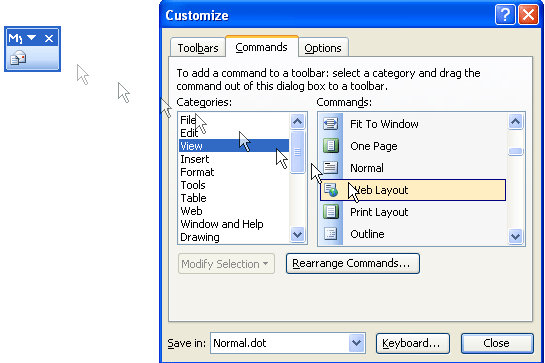
In the Customize window, click the Commands tab. Drag and drop the following commands onto your toolbar:

-          File: New E-mail Message and Mail Recipient

-          Edit: Paste as Hyperlink

-          View: Web layout

-          Insert: Hyperlink and Web Component

-          Tools: Envelopes and Labels

-          Web: Search the Web


8.

Close out of the Customize window.


9.

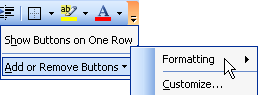
Click the down arrow () at the far right of the Formatting toolbar.

Choose Add or Remove Buttons and choose Formatting.

Click Justify to remove it.

Click off of the menu (into the editing window, for example) to close the menu.


10.

Close and re-open Microsoft Office Word 2003 and see if your sample toolbar is as you left it.